
Video · 3 min read
Turn a Vizard webinar clip into a demo viewers can follow
Choose the right crop for a webinar highlight and make the key on-screen action readable in the exported clip.
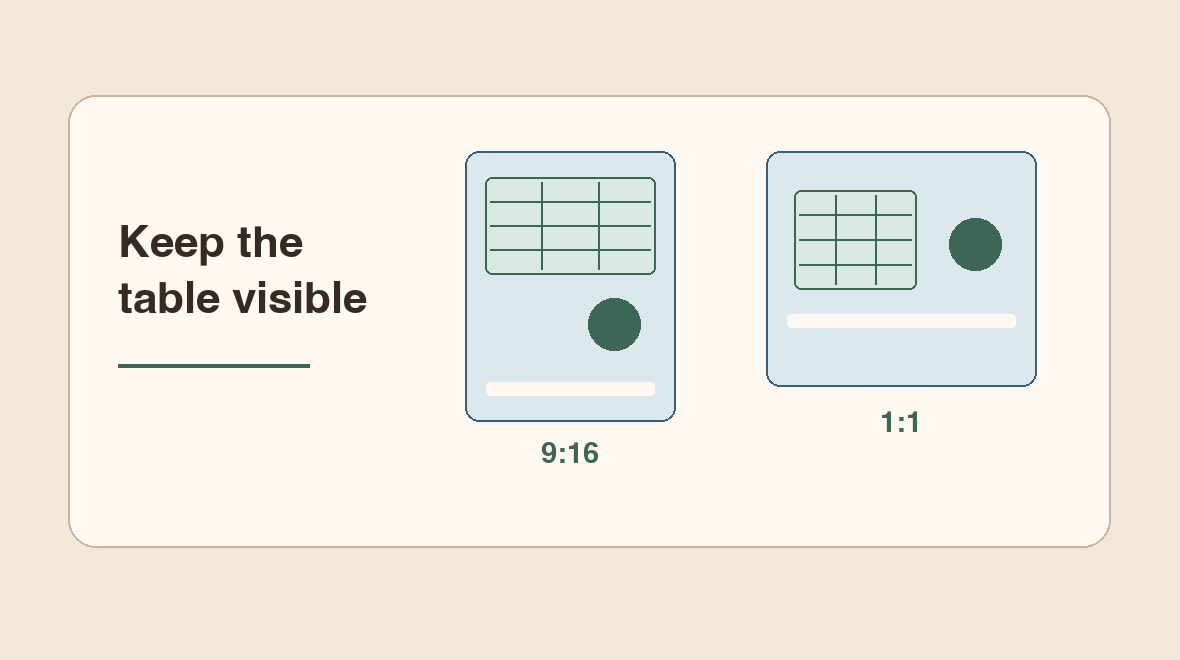
When the audience needs to see a click or a result, choose the layout around the shared screen. In Vizard’s Clip Preferences you can set preferred durations, choose vertical or square formats and apply a template. Vizard’s help gives a useful boundary: a screen-share template can fall back to a speaker-focused layout if the footage has no screen sharing.
Find the moment that proves the point
Take a workshop clip in which the host changes a filter and reveals the right rows. Mark the short exchange from the question to the updated table. The face sets up the question, while the changed rows answer it. If a proposed cut begins after the click, adjust its start so the viewer sees what changed. A speaker-first clip is a better fit when the answer is spoken and the shared screen adds no information.
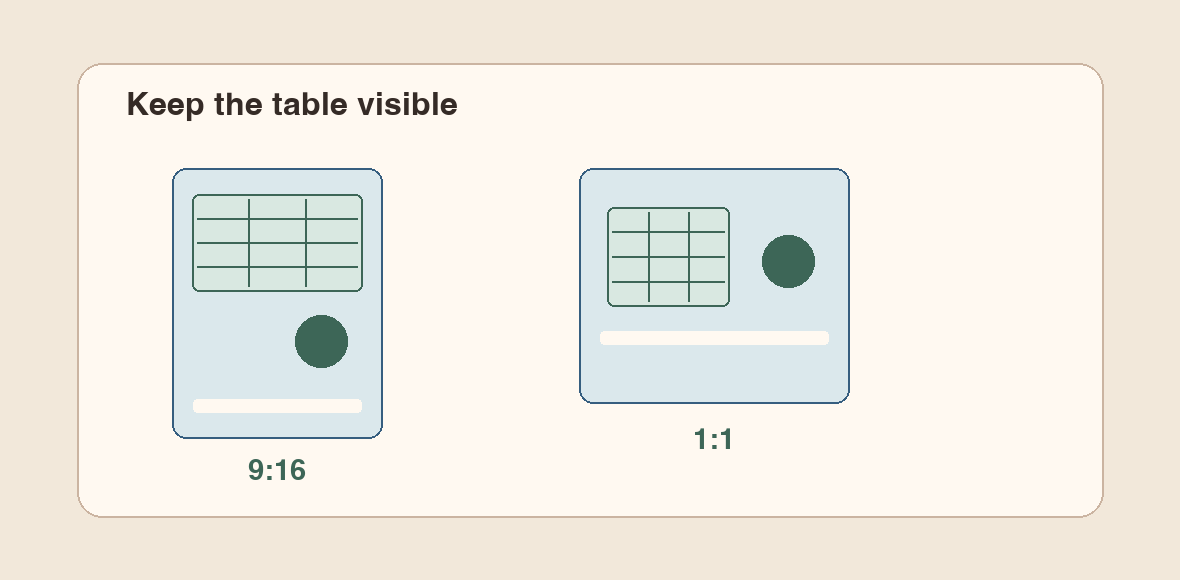
Pick the crop using the smallest label the viewer needs
Choose 9:16 if the delivery calls for a vertical clip, or 1:1 when you have a square placement. In the preview, check the filter label, the pointer and the resulting row. Put captions where they leave that area visible. Create a second version only if there is a second placement. Give it its own preview because a caption position that leaves a square table readable can cover a row in the vertical crop.
Open the export at phone size and follow the action with the sound muted. Check the caption for the exact filter name, then check the result on screen. Give the editor the source timecode for a revision. If the placement requires a particular resolution or a watermark-free file, check the export options on your plan first.
Visit official website
ProductTally may earn a commission if you buy through these links.
Vizard · Visit official website
Related guides
Official references
ProductTally may earn a commission if you buy through these links.