
Video · 2 min read
How to reuse an approved SRT file in Vizard
Bring captions into Vizard with their timestamps, and check that they still match the cut you plan to publish.
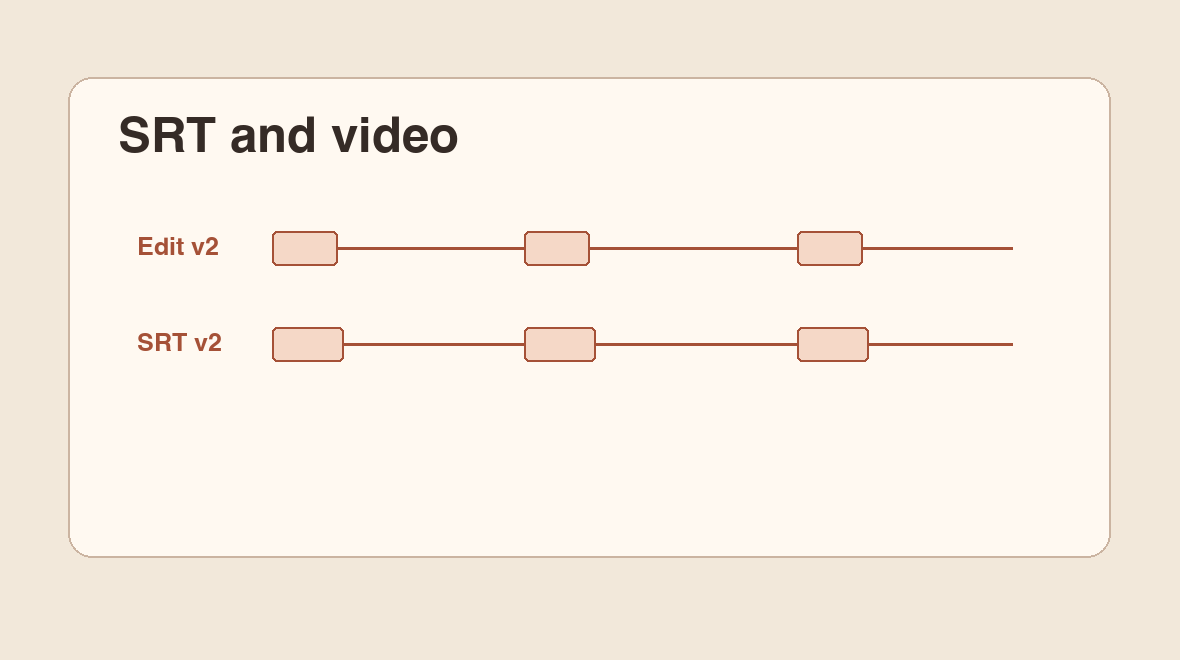
Choose SRT when the editor already has a timed caption file for the same version of a video. The Vizard help center says you can upload a video or use a link, open the language menu and choose Upload subtitle file. Set the language to match the caption file. In the official format list, SRT carries timings, while a plain-text or Word file gets timing generated during import.
Keep captions with the approved cut
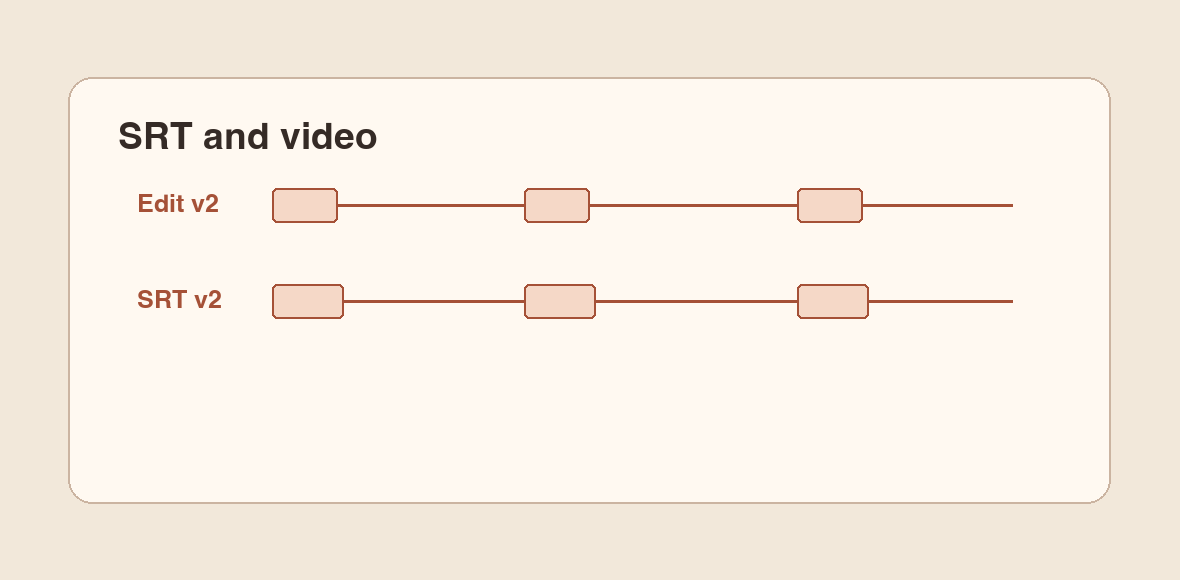
Version the transcript with the video. For example, a webinar editor might remove a twelve-second introduction after sending the subtitle file to a reviewer. In that case, import the SRT with the cut it was written for, or adjust the caption timing to the newer cut first. Keep the original file so the team can tell what was approved.
Review the first, edited and final moments
Use three visual checkpoints in the exported video: the first caption, a distinctive line near an edit, and the last caption. If only one line is wrong, correct it there. If the offset starts at an edit and continues through the whole second half, reconcile the file with the latest cut before approving delivery.
Visit official website
ProductTally may earn a commission if you buy through these links.
Vizard · Visit official website
Related guides
Official references
ProductTally may earn a commission if you buy through these links.