
Video · 3 min read
How to remove silence in Vizard without losing the beat of a talking-head video
Use the transcript to find pauses, then decide which cuts make a tutorial easier to follow.
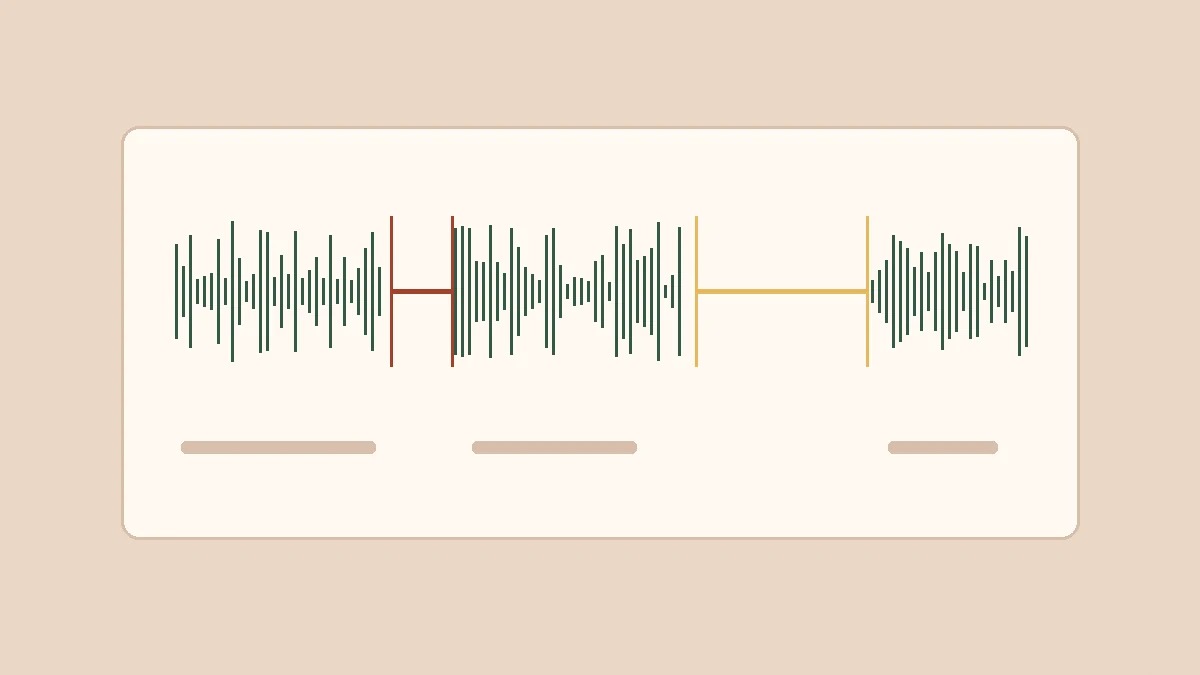
Vizard can shorten silent gaps and trim fillers. Use automatic cleanup for a first pass, then check the pauses that give viewers time to read a screen, understand an instruction or hear a punchline. For precise changes, Vizard also lets you edit video by selecting text in the transcript.
A pause can carry part of the explanation
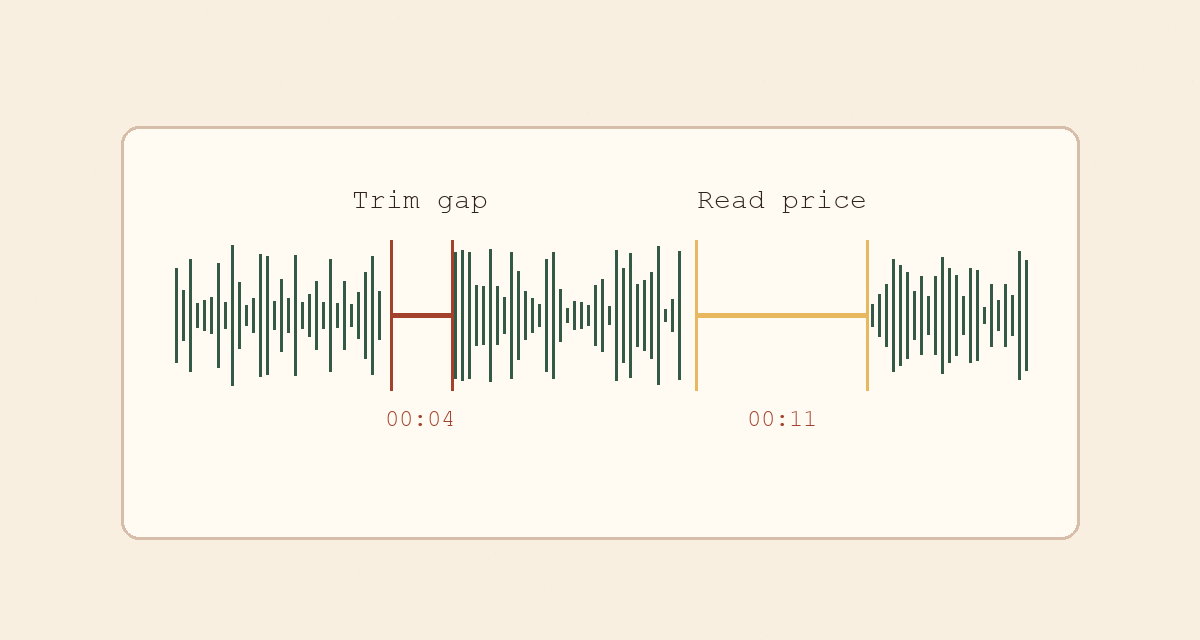
Imagine a product tutorial. The presenter says “open Billing,” thinks for a moment, then names the next menu. Later, the presenter says “this is the amount you’ll be charged,” then holds on the amount. Trim the first gap if the picture adds nothing. Give the second enough time for viewers to read what you just pointed out.
Before opening the editor, mark two or three places that need breathing room. Those anchors give you a short review list after cleaning up a longer clip.
Use the transcript for the first pass
Vizard’s official editing page shows how selecting text changes the corresponding video. Work from the transcript when a second take repeats the same instruction or when a spoken aside no longer serves the edit. Play across each new join to make sure the sentence still reads naturally.
The short-video editing API documentation also describes a Remove Silence option and a separate filler setting. Those are automated controls and may appear differently depending on where you edit. If the document and your editor use different terms, use the editor’s own labels and preview the resulting cut.
Play it once while watching the screen
Review the edited clip the way someone learning the task will watch it. If the next instruction begins before the current menu becomes readable, restore room around that action. If the picture and voice stay on the same beat, you can leave the tighter cut. For multilingual captions, also make sure the viewer has enough time to read the longest line.
ProductTally may earn a commission if you buy through these links.
Related guides
Official references
ProductTally may earn a commission if you buy through these links.