
SaaS product news · 4 min read
Figma AI now generates 2, 4 or 6 image options from one prompt
Open Make image or Edit image, write a prompt and open the model picker. Choose one model with 2, 4 or 6 images, or compare up to three models with one image from each. Figma announced these options on November 18, 2026. You need edit access and available AI credits; Starter supports AI image tools only in Figma Design.
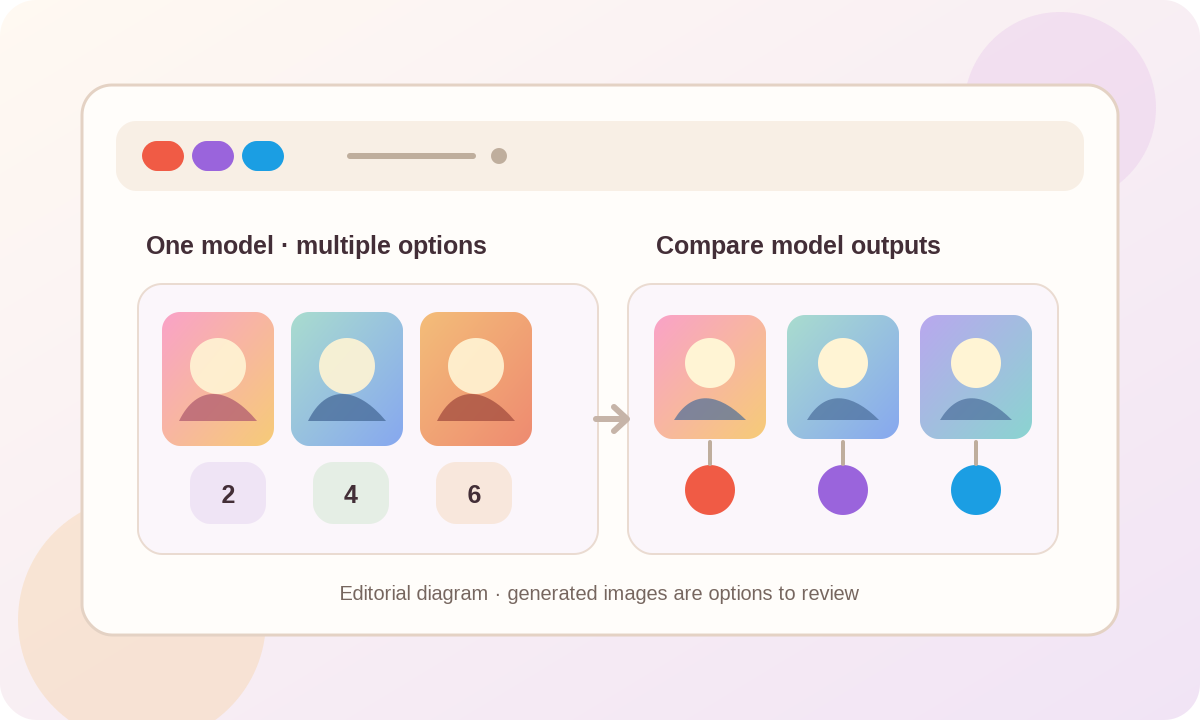
Two ways to compare image ideas
The update separates two jobs. If you want several interpretations from one model, choose 2, 4 or 6 images. If you want to compare model styles, add up to three models and receive one image per selected model. Figma lists both options for Make image and Edit image.
| Goal | Choice | What you get |
|---|---|---|
| Explore variations | One model; 2, 4 or 6 images | Several options from the same model and prompt |
| Compare models | Up to 3 models | One result from each selected model |
Try it in a design file
- Open a file where you have edit access and select a layer to fill, or deselect layers to create a new image.
- Open Actions and choose Make an image, then write a prompt that describes the subject and useful visual constraints.
- Choose a model and the 2, 4 or 6 image option, or add other models to compare their outputs.
- Send the prompt. When filling a layer, preview an option on hover or place all results on the canvas to review them together.
For Edit image, select an image first and use the editing action, then choose the model options shown in the picker.
Check access and AI credits
Figma says image tools are available on all plans when you have edit access to the file. Starter plan users can use AI image tools only in Figma Design. Figma AI credits are assigned by seat, reset monthly and vary by plan and seat type. Image-generation costs also depend on the model; Figma’s credit help page lists its current rates as of November 19, 2026, and says costs may change. Check the balance and displayed cost in your account before estimating a recurring production budget.
Where the change helps—and what still needs review
This is useful when a designer wants to compare visual directions without rewriting the prompt for every attempt, or when a team wants to see how selected models interpret the same brief. Treat the results as options to review, not finished brand assets: check composition, text, product details and usage rights before placing an image in a client deliverable. Figma documents the generation controls; it does not promise that each output will meet a brief without editing.