
SaaS product news · 4 min read
Canva adds separate controls for generative AI and AI-made library content
Canva has introduced two account-level controls: one can switch off generative AI features, while the other limits AI-generated content in the Canva library. Canva says both are available to Free and Pro users at no extra cost. They affect different parts of Canva and can be managed separately.
Two settings, two different jobs
Generative AI Control switches Canva’s generative AI features on or off for an account. When it is off, those features are hidden and can be turned on again later. Find it under Profile → Settings → Permissions. AI-Generated Content Control limits AI-generated items when browsing Canva’s library; it does not change designs that already exist. Find it under Profile → Your account → AI Personalization. Canva describes the second setting as a way to limit these results, not as a guarantee that every AI-made item will disappear from every search.
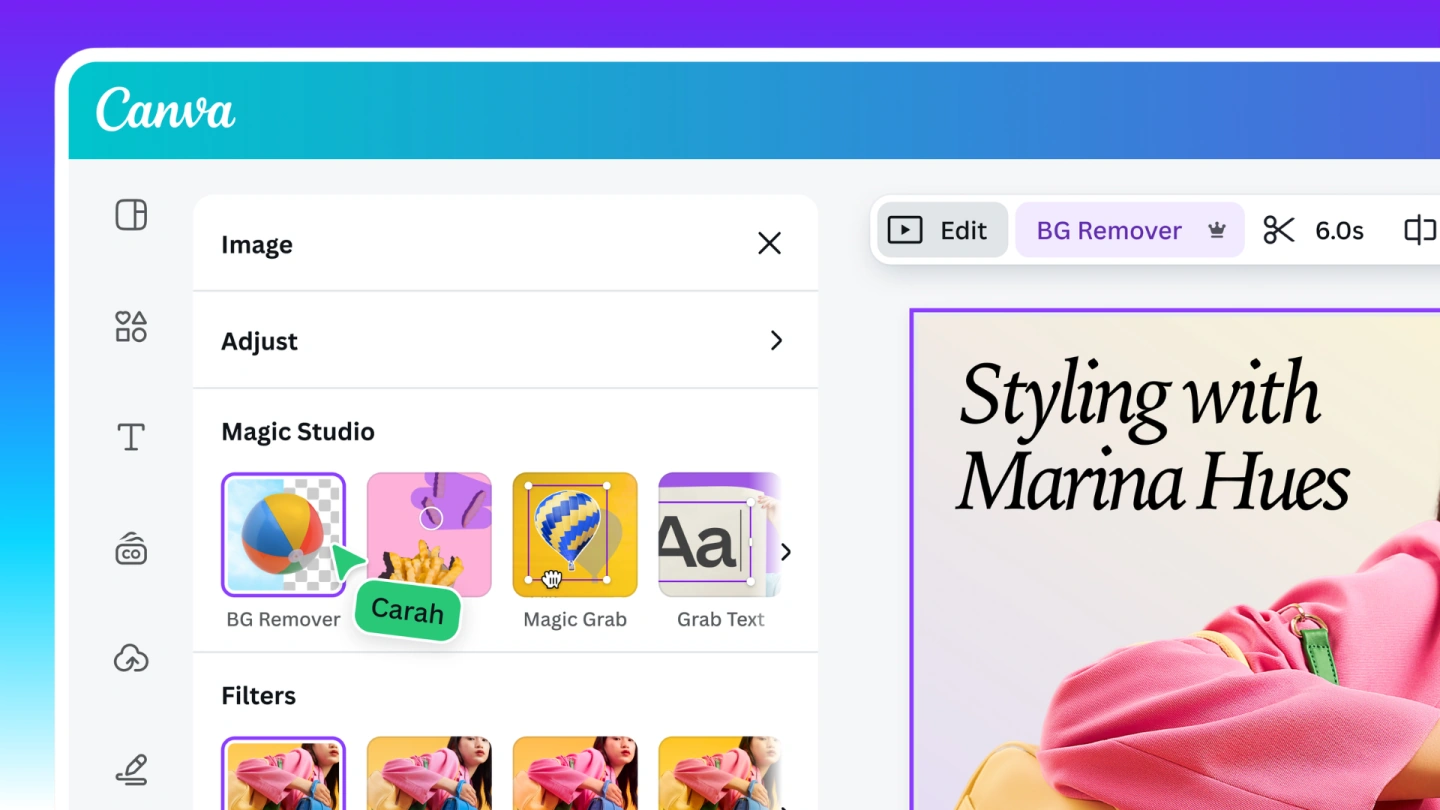
Some assistive editing tools stay available
Canva distinguishes generative features from tools that edit existing material. The company says Background Remover and Magic Grab remain available when generative AI is switched off. Canva also says these tools do not trigger its AI-generated-content label or metadata. The setting is therefore not a blanket off switch for every AI-related capability.
Team permissions are managed separately
The new controls are for individual Free and Pro accounts. Canva separately documents admin controls that let organization owners and administrators manage members’ access to Magic and AI features. If you work in a team, check its organization settings rather than assuming a personal preference changes access for everyone.
Choose the control that matches your concern
If you want fewer generative features in the editor, use Generative AI Control. If you want to limit AI-generated items while looking through library content, use AI-Generated Content Control. Change the relevant setting and check the corresponding part of Canva; the two preferences do not do the same job.