
Design & visuals · 4 min read
Choose a Udemy Photoshop course for product photo background removal
Use layer masks to remove a product photo background, check difficult edges and hand off both an editable PSD and a transparent PNG.

Choose a Udemy Photoshop course that combines subject selection, layer masks and export. For a product photo, the goal is to remove the background while giving the next editor room to restore a small edge or change the backdrop. A layer mask keeps the original image available and controls where it appears.
Make a product photo you can still edit on Friday
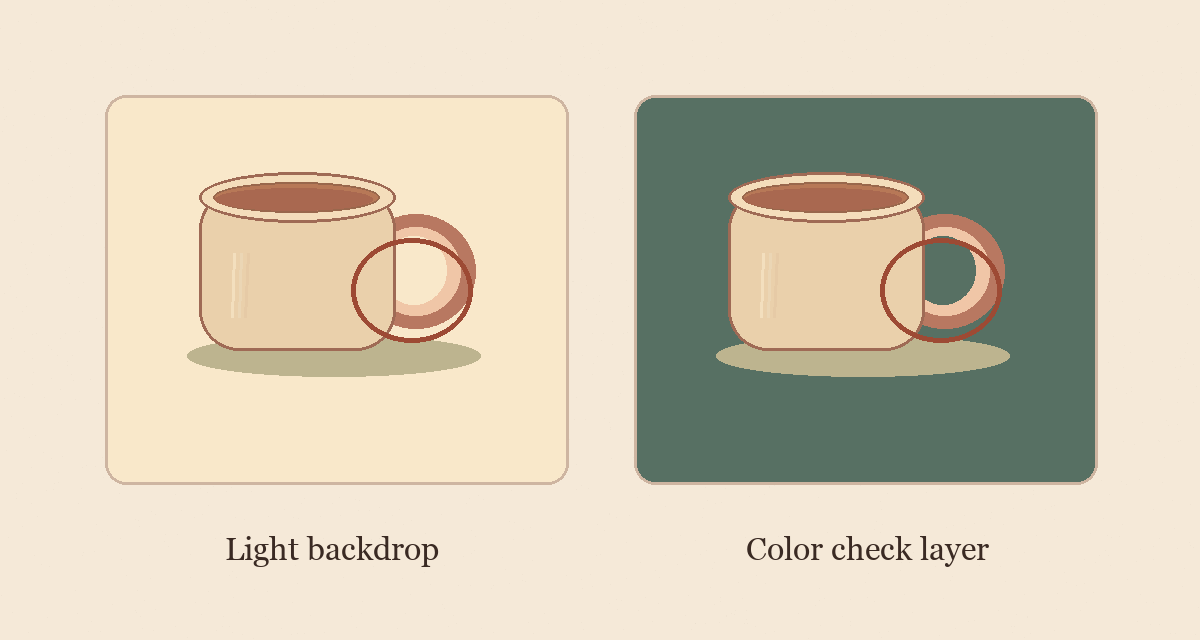
Try a coffee mug with a curved handle and light glaze, photographed against a pale backdrop. The middle of the mug is easy to select. The inside of the handle and the pale edge are where a generic “remove background” lesson can leave you guessing. Use a photo you own or are allowed to edit. Make an initial selection, then add a layer mask. On that mask, black hides, white reveals and gray makes an area partially visible. Check that you are painting on the mask thumbnail before you touch the edge.
Inspect the edge in two places
- Inside the handle. Put a colored fill layer underneath and look through the opening. Any strip of the original backdrop will be easier to spot.
- Around the outer contour. Toggle between a light and a dark temporary background. A pale rim can disappear on white and stand out on a dark shop page. Review at 100% for stray pixels and at the final display size for the overall silhouette.
Keep the layered PSD as your editable master. When you need a transparent PNG, hide the temporary backgrounds, enable transparency in the export where applicable, and open the exported file over a colored background. A white area in an exported file might be opaque white. Checking it with colored pixels behind it makes the difference visible.
Daniel Walter Scott’s Udemy *Adobe Photoshop CC – Essentials Training Course* lists a layer-mask lesson and an exercise using Select & Mask on difficult edges. Preview an available lesson and look for the moment when the instructor returns to a mask to adjust the selection. That step matters when the product image has to work on more than one background.
ProductTally may earn a commission if you buy through these links.
Related guides
Official references
ProductTally may earn a commission if you buy through these links.