
Workflow automation · 4 min read
How to choose a Udemy Docker Compose course
Use a two-service app and PostgreSQL to learn Compose networking, loopback ports, and volumes. Check that a saved row survives container replacement.
Choose a Udemy Docker Compose course that makes you connect an application to a database and verify that the data survives replacing the database container. A small project makes the syllabus easier to judge. You need to see who can reach each service, where the database stores its files, and how to tell whether a startup problem comes from networking or readiness.
Can your Docker Compose course get you from two containers to a working app?
Imagine inheriting a prototype with a web interface and PostgreSQL. It works on the developer’s laptop, but the README says only “start Docker.” A useful Compose exercise should let a second person reproduce the setup from one file. For a compact local example, use Adminer as the browser interface and name the PostgreSQL service db. The host browser opens Adminer through a loopback port such as 127.0.0.1:8080. In Adminer, the database server is db, and PostgreSQL needs no host-published port for this exercise. Compose gives services on the default network a name they can use to find one another.
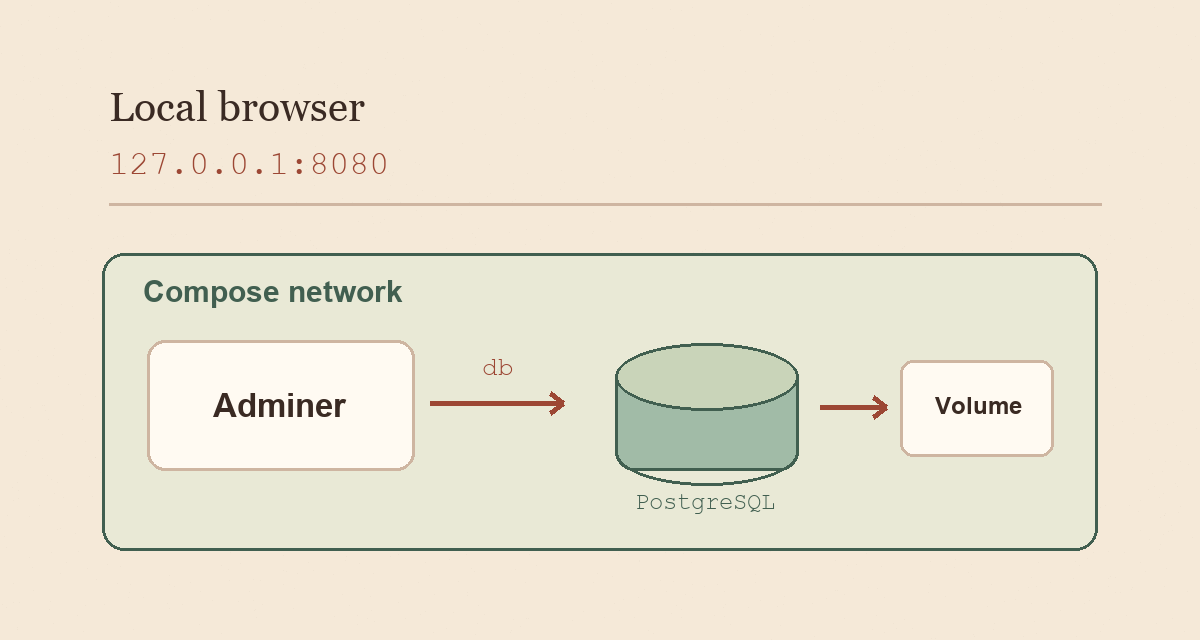
Give the two services different responsibilities
| Piece | Set it up this way | What to check |
|---|---|---|
| Web interface | Publish only to 127.0.0.1 | Your browser can open it locally |
| PostgreSQL | Name the service db | The interface connects to db, not its own localhost |
| Database storage | Mount a named volume at the data directory for the chosen PostgreSQL image | A test row is still there after the database container is replaced |
Use an isolated project with disposable data. If you stay on PostgreSQL 17 for the exercise, the official image uses /var/lib/postgresql/data for this volume. Read the image documentation again if you change major versions. If the UI opens before the database accepts a connection, wait for the service to be ready and retry. Use test credentials from your own local configuration and keep them out of materials you share.
The row is what tells you the lesson worked
Create a table called notes with a text column named body and insert demo entry. In the disposable project, use docker compose up -d --force-recreate db to replace the database container while keeping the named volume. Reconnect and run SELECT body FROM notes;. Your goal is one row with demo entry. Keep the volume in place throughout the exercise. Bringing a stack back up with a new volume tests a different scenario.
Udemy’s *Docker Mastery* syllabus includes Compose V2 commands, a multi-container assignment with Drupal and PostgreSQL, and a separate image-building assignment. Start with the Compose section if your aim is to run a small app and database locally. The Adminer exercise above is a smaller, original example of the same architecture.
A Compose file for the exercise
services:
  ui:
    image: adminer
    ports:
      - "127.0.0.1:8080:8080"
  db:
    image: postgres:17
    environment:
      POSTGRES_DB: practice
      POSTGRES_USER: learner
      POSTGRES_PASSWORD: ${PRACTICE_DB_PASSWORD:?Set a local practice password}
    volumes:
      - notes-data:/var/lib/postgresql/data

volumes:
  notes-data:
Set PRACTICE_DB_PASSWORD in a local .env file. Start with docker compose up -d. At http://127.0.0.1:8080 choose PostgreSQL; server db; database practice; user learner; use your local password.
ProductTally may earn a commission if you buy through these links.
Related guides
Official references
ProductTally may earn a commission if you buy through these links.