
Online learning · 4 min read
Which Teachable lesson block should hold each file?
Use Video, PDF Viewer and Resources for a demo, a handout and a practice file. Verify what learners can play or download.
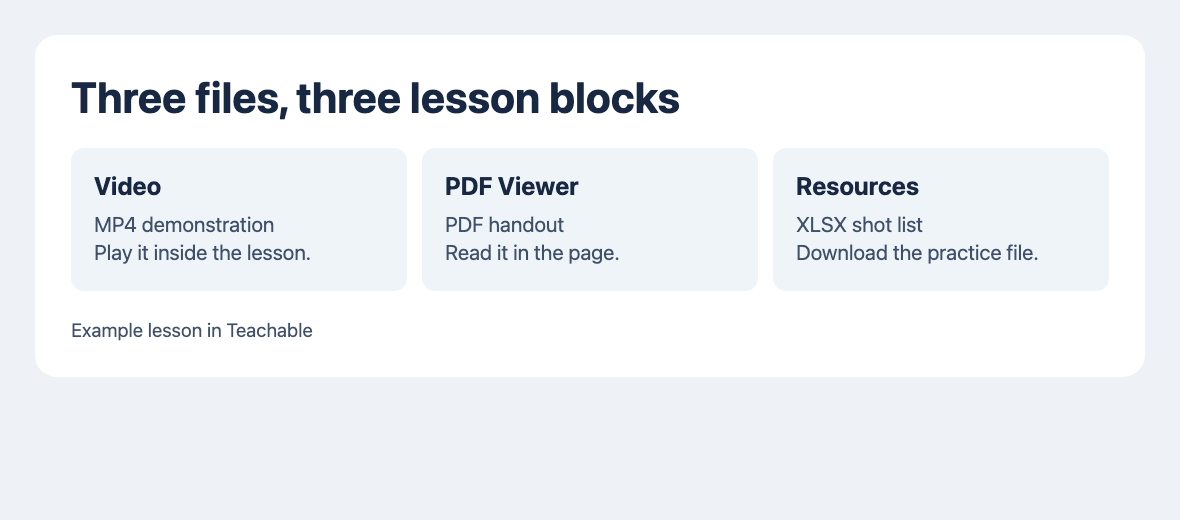
Use Video for a demonstration learners can watch, PDF Viewer for a handout they can read online, and Resources for practice files they need to download. Video and PDF have their own download controls. Resource files are for download, without an inline viewer.
Choose the block by what learners need to do
| Example file | Use in the lesson |
|---|---|
| MP4 demo | Play it alongside the exercise. Allow downloads only if your rights permit them. |
| PDF handout | Display it in the reader. Enable downloads if learners need to print or read offline. |
| XLSX shot list | Use Resources for the download, and say what opens it and where to submit the completed file. |
Use Show download link in the uploaded Video settings and in each PDF’s settings to allow downloads. Resources gives students a download rather than an inline viewer. Teachable’s lesson documentation lists a 20 GB upload limit and says large videos can take time to optimize.
Teachable Help Center · Add Lesson Content · Content File Types
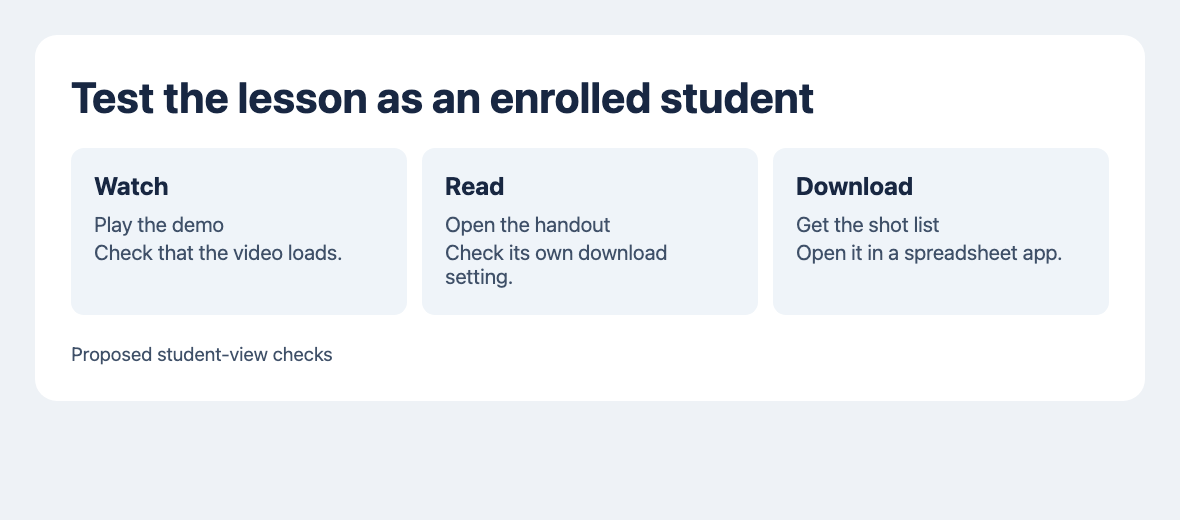
Version the files before replacing them
Put a version in the worksheet filename and date the lesson note. Keep the older version accessible where relevant to past submissions. Use an enrolled account to test playback, PDF reading and downloads, and a non-enrolled account to check the access boundary. Tell learners when the new resource is ready.
Visit official website
ProductTally may earn a commission if you buy through these links.
Teachable · Visit official website
Related guides
Official references
ProductTally may earn a commission if you buy through these links.