
Online learning · 4 min read
How should a Teachable student submit a revised assignment?
Separate public lesson discussion from private assignment files, and test submission, feedback and revisions.
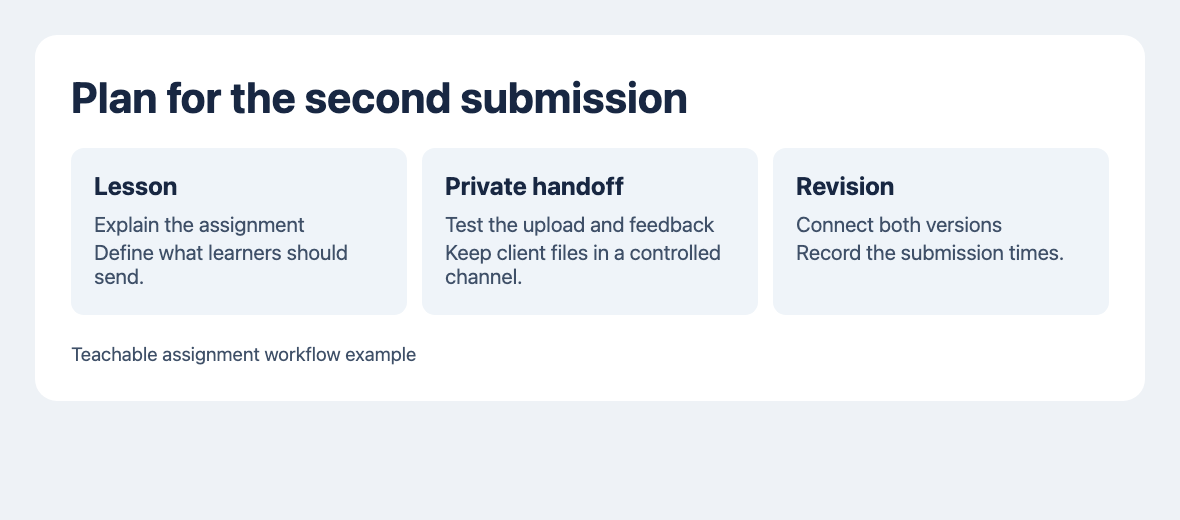
Teachable course comments can appear to others in the course. To collect work privately, first check the lesson’s open-ended question block. Teachable’s Course Reporting Tools guide shows an admin report with submitted answers and a file link when uploads are enabled.
Connect the learner’s submission to the reviewer’s record
For a 30-second clip, test the first upload, reviewer access and how to accept a revised file. The report documents one submission record with an answer, timestamp and optional file link. Check whether a second submission preserves the earlier version and how learners can receive private feedback in your account.
If the native workflow does not cover revisions or private feedback, link to a permission-controlled form or embed it using Custom Code where available. The external service controls access, storage and notifications. Test with fictional files and two learner accounts before collecting student or client material.
Teachable Help Center · Course Comments · Course Reporting Tools · Add Lesson Content
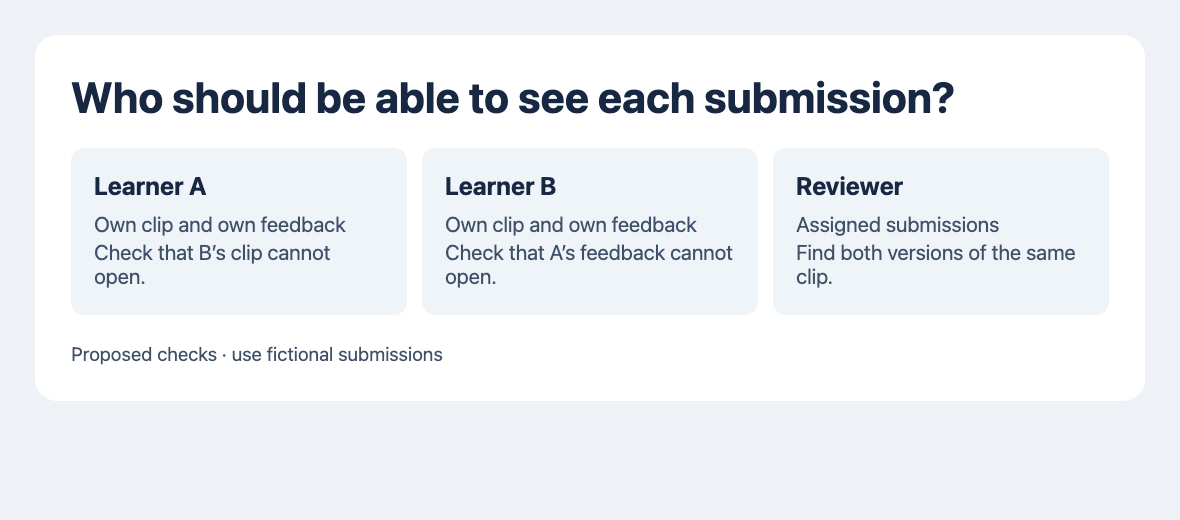
Test with two learner accounts
Verify that neither learner can see the other’s files or feedback and that the reviewer can access only the intended records. Try a rejected attachment and a missing field. Fix IDs or file naming if the revision loses its connection to the original. Keep versions, receipts and feedback traceable before opening the assignment.
Visit official website
ProductTally may earn a commission if you buy through these links.
Teachable · Visit official website
Related guides
Official references
ProductTally may earn a commission if you buy through these links.