
Online learning · 4 min read
How should instructors, teaching assistants and operators share Teachable access?
Build a permission matrix for course edits, progress and billing. Verify what each role can and cannot reach.
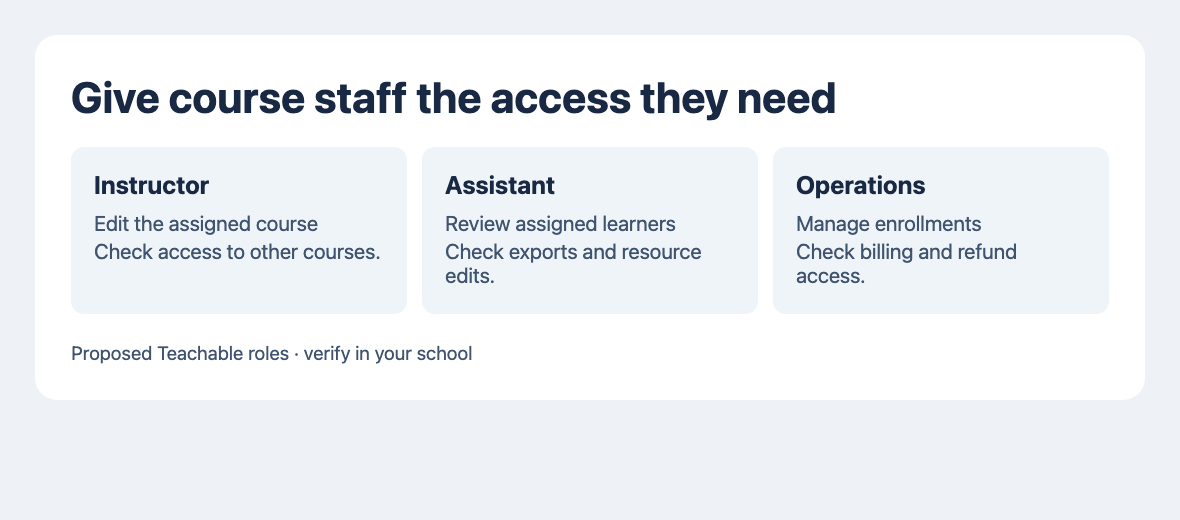
Start with each person’s tasks, then inspect Settings → Roles. Assign a built-in role when it fits. If you need custom permissions, verify the current plan and what the account actually offers.
Audit access by role
| Role in your team | Required work | Access to test |
|---|---|---|
| Instructor | Edit a designated course and check resources before release | Other courses and financial pages |
| Assistant | Check assigned learners and give feedback through an approved channel | Editing, roster export and other classes |
| Operations | Enrollments, accounts and required billing tasks | Refunds, revenue and administrator seat limits |
The current Types of User Roles article says Growth and above can create custom roles. The separate Custom User Roles guide still names Business. Use the current pricing page and check whether Settings → Roles shows the controls in your own school. The three rows are permissions to verify before giving staff access.
Teachable Help Center · Types of User Roles · Admins · Custom User Roles
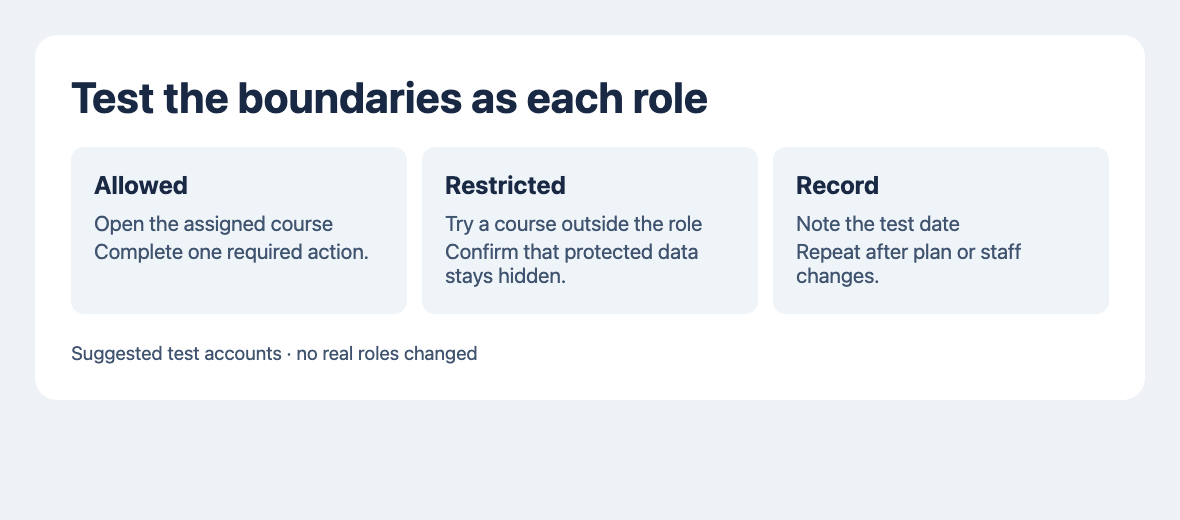
Use one test account per role
Use one test account per role. Open each required page and try access to courses or financial pages that should remain restricted. If a task needs broader permissions than the assistant should have, keep that task with the existing owner. Record the role, date and results, and repeat the check after staff changes.
Visit official website
ProductTally may earn a commission if you buy through these links.
Teachable · Visit official website
Related guides
Official references
ProductTally may earn a commission if you buy through these links.