
Workflow automation · 2 min read
Make an n8n scheduled workflow run on your team’s local clock
Choose the workflow timezone before publishing a daily report or reminder.
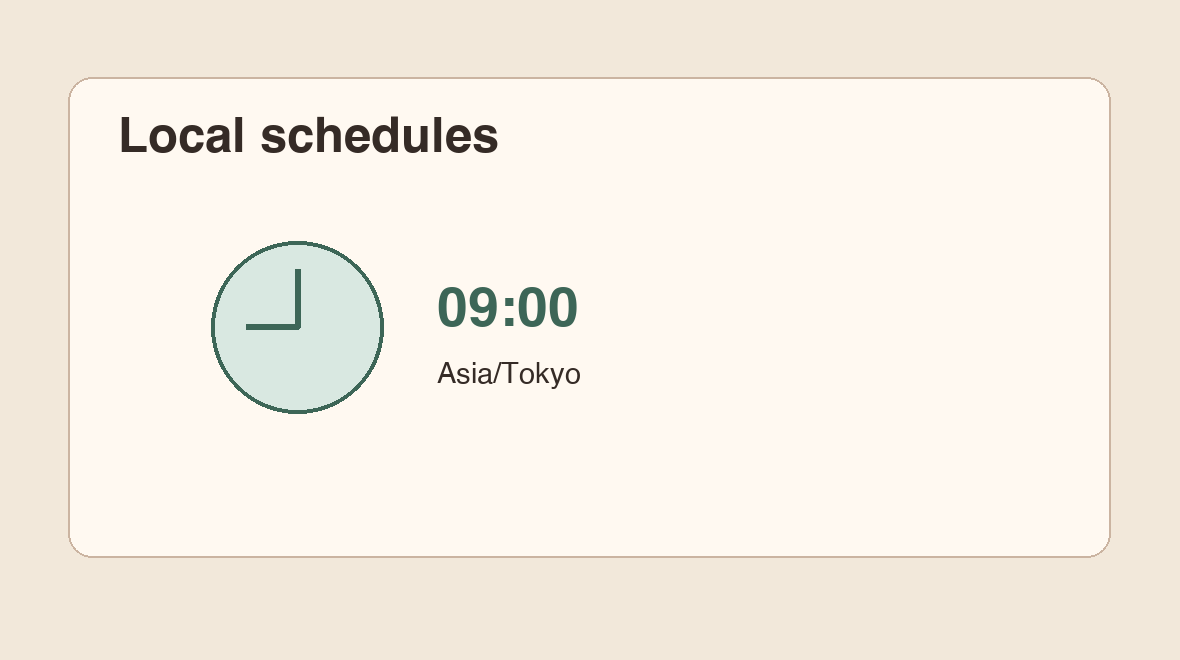
n8n’s Schedule Trigger uses the workflow’s timezone if one is set and the instance timezone otherwise. For a report promised at 09:00 Tokyo time, set the workflow timezone to Asia/Tokyo, choose a daily rule at 09:00 and publish the workflow. A colleague’s browser timezone is separate from the clock that schedules the trigger.
Choose the clock for the job
Write the intended delivery in plain language next to the workflow name, such as “daily at 09:00 Tokyo.” If the team needs a New York business-day reminder instead, choose its local timezone and build the weekday condition around that calendar. Think through daylight saving when colleagues use another clock. A fixed UTC hour and a fixed local hour serve different promises.
Verify the date and the delivery time
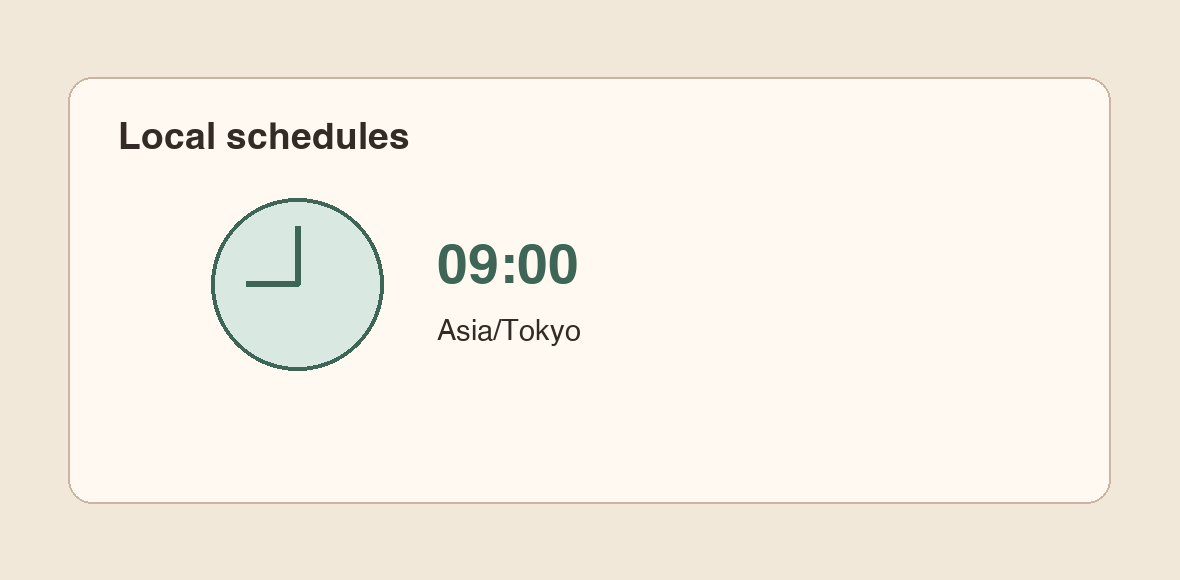
Use a team-controlled destination for the first scheduled run. Check the execution timestamp against the delivery promise and confirm that the report covers the right business date. After changing the timezone or timing rule, publish the updated workflow and check the next normal run.