
E-commerce · 3 min read
Merchant Center Black Friday price mismatch: trace one affected SKU
Check the submitted offer, the selected landing-page variant, and the structured price in that order.
When Merchant Center flags a price mismatch, start with the affected item ID. Check its submitted variant, currency, and price. Then open that item’s landing URL and verify what a shopper sees for the same variant.
Put all three prices on one line
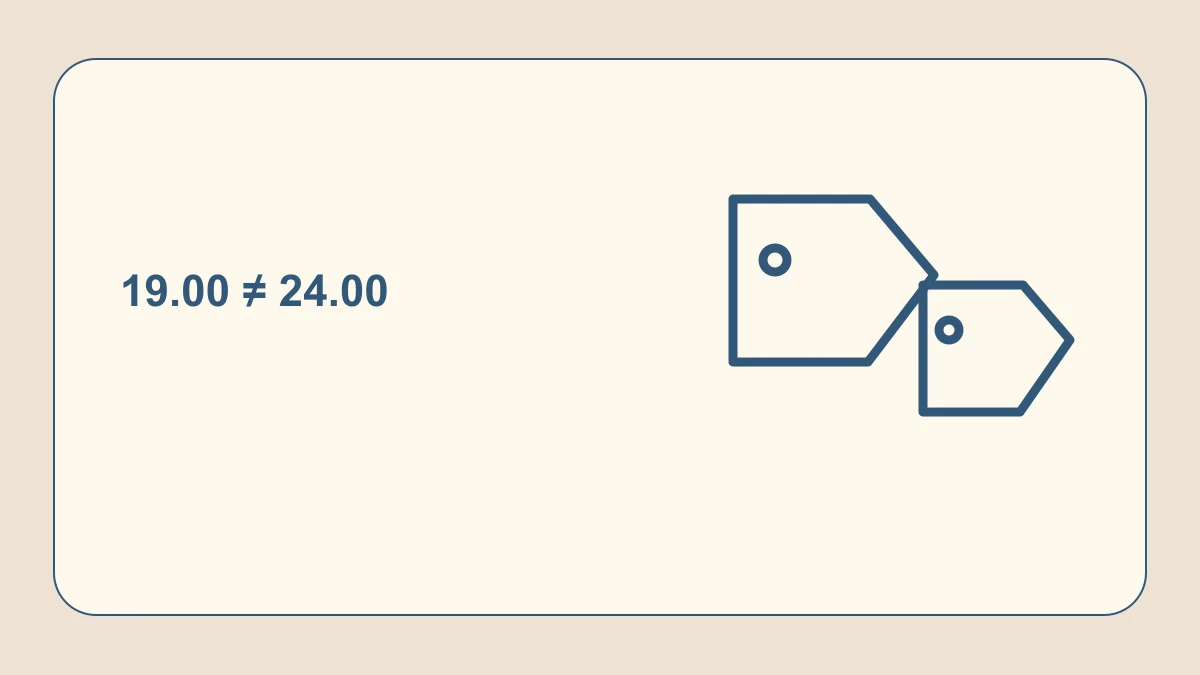
Suppose a blue tumbler is on sale for US$19 and the red one costs US$24. If the blue SKU is submitted at US$19 but its link opens the red variant at US$24, fix the URL or default selection first. If the correct variant displays US$19, inspect whether its structured Offer still contains the old amount and whether the currency matches the target market.
| Variant and check | Example value | What to fix |
|---|---|---|
| Blue SKU in feed | US$19.00 | Feed has the intended sale price |
| Open the item URL | Red, US$24.00 | Fix the URL or default color first |
| Structured Offer for blue | Old amount or wrong currency | Fix markup after selecting the right variant |
Fix the layer that owns the wrong value
Update the feed if the genuine sale price is already correct on the page. If a storefront template serves the old price, correct the storefront and its structured offer. Once the submitted, visible, and machine-readable prices agree, follow the issue instructions for the affected item. Save the variant ID and time checked so someone can revisit the same offer if it happens again.