
Productivity · 4 min read
You rescheduled in Cal.com. Why does your client still see the old time?
Verify the booking status, the updated invitation in both time zones, and any old calendar copies after a change.
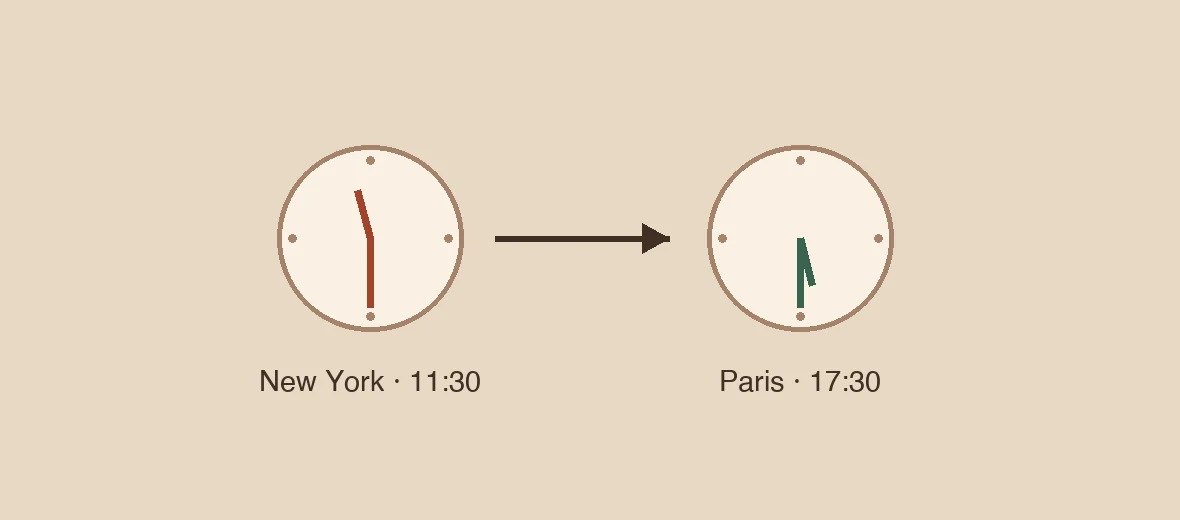
Start with the booking in Cal.com. Look for the change action in Bookings or in the original confirmation email. If someone declined the invitation or removed it from their calendar, open the Cal.com record to check whether the booking is still active before telling anyone the meeting is off.
Check the new invitation in both time zones
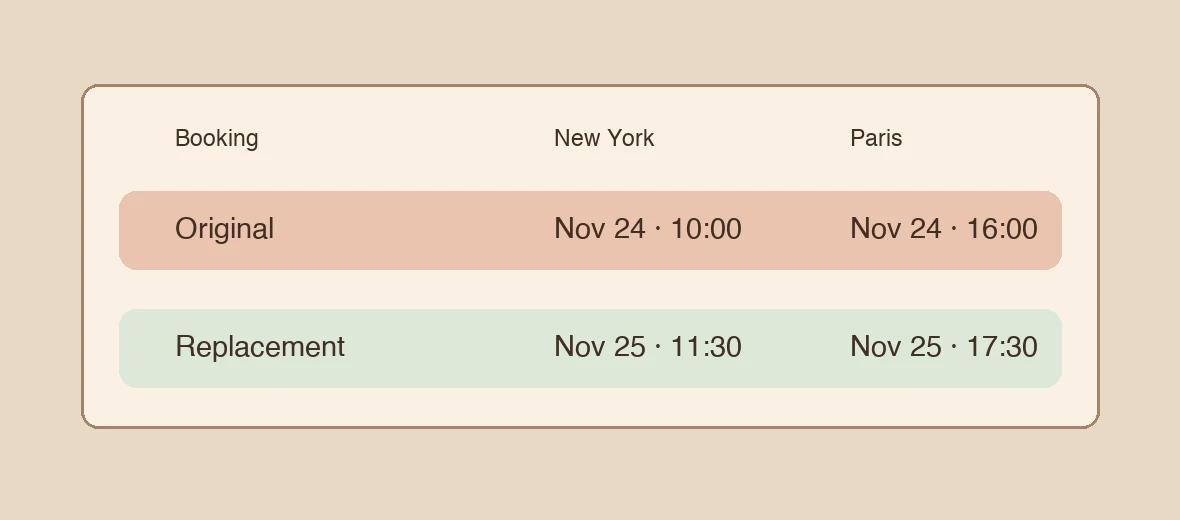
Suppose a consultant in New York moves a call from November 24, 2026 at 10:00 to November 25 at 11:30. In Paris, that's a change from November 24 at 16:00 to November 25 at 17:30. Include both local dates when confirming the move.
- Open the original booking, verify the attendee, and use Reschedule booking if you already have a new slot. In Cal.com’s published source, Request reschedule marks the old booking cancelled and sends the attendee a link to choose a replacement. Check the booking again after the attendee chooses a time.
- Check the updated booking, the received message and the calendar entry in a test attendee's account. Use the time zone of that calendar when reading the date.
- If the attendee imported a copy of the invitation or received a forwarded event, check that copy separately. If it still shows the old time, confirm which invitation they should follow.
After cancellation, check that the message reached the right people
Cancel through the booking page or the option in the confirmation email. Look for the cancelled booking status and verify what the attendee received. If they forwarded a copy to a colleague, confirm whether that person got the update too. When the meeting is soon and the message hasn't been acknowledged, confirm through the existing conversation. A rehearsal with two test mailboxes lets you see how your notification settings and calendar clients handle the change.
Visit official website
ProductTally may earn a commission if you buy through these links.
Cal.com · Visit official website
Related guides
Official references
ProductTally may earn a commission if you buy through these links.