
Video · 5 min read
Host a product demo while your guest drives in StreamYard
Give the guest the controls and stay with the audience. Here’s how to hand over the screen in one live demo.

Your guest says they are ready. You switch screens and the audience sees the test page they meant to close. Practice that moment. StreamYard lets the guest prepare a share while the host decides when it goes on screen. One booking is enough to see whether the handoff works.
Keep the guest share backstage until you are ready
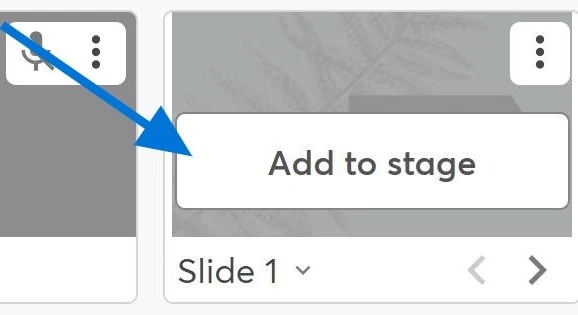
Have the guest open a dedicated desktop browser tab. In the studio they use Present, then Share screen. Look for Add to stage on the share’s thumbnail. Check the setting that automatically adds shared content if you want to control the timing. For browser audio, use a Chrome tab and enable Share audio.
Walk through one booking in eight minutes
| Time | What happens |
|---|---|
| 0–1 min | The host introduces the booking question. The guest waits with the page ready. |
| 1–5 min | The host puts the tab on stage. The guest books Thursday at 3 p.m. and stops at confirmation. |
| 5–8 min | The host takes questions on time zones and notifications, then returns to the cameras. |
Ask the viewer to read the date, time zone, and confirmation status back to you.
Make a wrong switch during the rehearsal
Share an empty tab on purpose. The host brings the cameras back and takes a question while the guest picks the right tab. For YouTube, StreamYard documents how to share an unlisted test with a rehearsal partner. Ask that person to listen on the phone player to check both microphones.
Get one destination working before adding another
Give viewers a clear handoff between screens and confirm that they can hear both speakers. Review plan options if you need another destination, output resolution, or branding controls.
ProductTally may earn a commission if you buy through these links.
Related guides
Official references
ProductTally may earn a commission if you buy through these links.