
SaaS product news · 5 min read
Gemini Notebook can turn sources into interactive sites
Google announced interactive sites in Gemini Notebook on November 16, 2026, with a Workspace update dated November 18. The feature is rolling out globally on the web to people aged 18 or older; Workspace domains have a gradual rollout of up to 15 days starting November 16, and mobile access is coming later. In a notebook you can edit, describe the site you want in chat with “make me a site,” then open it in a new tab. Usage limits apply, and sharing requires access to the notebook as well as the site link.
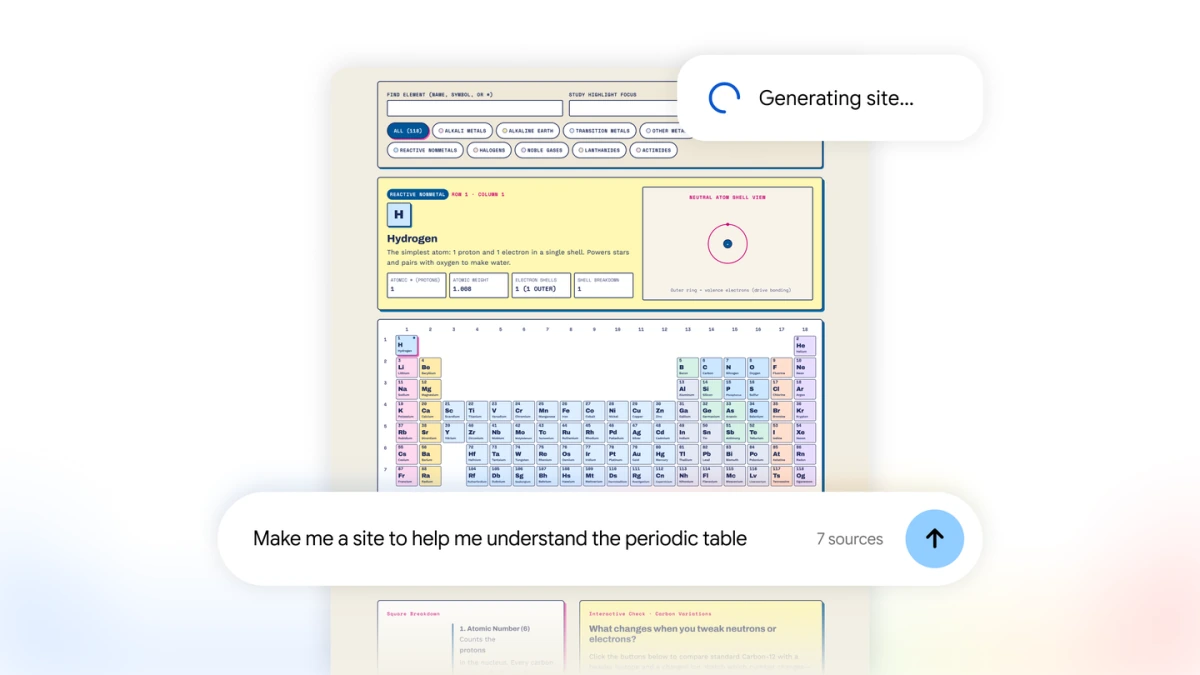
What Google announced and who can use it
Gemini Notebook can create an interactive site from sources in a notebook. Google gives examples such as an interactive periodic table or history timeline for study, a dashboard for exploring quarterly sales, and a tracker for project tasks and deadlines. The feature is for users aged 18 or older and is rolling out on the web; Google says mobile support is coming soon.
The Workspace update says gradual visibility began November 16 and can take up to 15 days. That means the feature may not appear in every eligible Workspace account on the same day. Google also says usage limits apply to site creation, so check the current limit in your account before planning a large set of outputs.
Make a first site from a focused notebook
- Open or create a Gemini Notebook that you can edit, then add the sources the site should use.
- In Chat, ask “make me a site” and specify the intended audience, the job the site should help with, and the format—for example, a short visual explainer or a task tracker.
- When generation finishes, open the site from Studio or select Open in a new tab to interact with it.
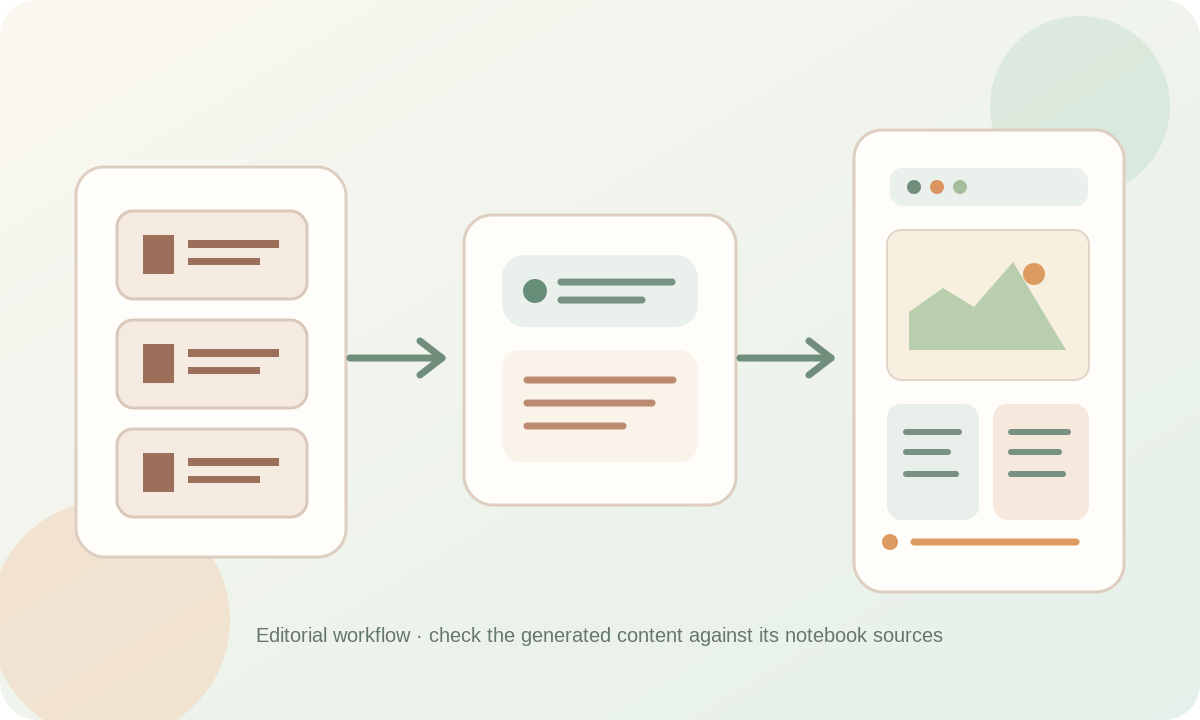
- Try the controls and compare the text and outputs with the notebook sources before using them in a lesson or team workflow.
Google notes that generation can take time; you can keep working in the notebook while it runs.
Sharing is tied to notebook permissions
For public sharing and access management, Google requires a consumer account and that you are the notebook owner or an editor. The notebook itself must also be shared with the recipient—or set to anyone with the link—because viewers need access to the full notebook. A site link alone does not bypass the notebook permission.
Google’s Help Center says each person using a shared site sees only their own inputs, not inputs submitted by other users. It also says the site saves and reopens with that person’s previous selections and entries. Check the notebook’s source and sharing permissions before distributing a link outside your team.
Choose a use case that can be checked
A visual explainer can help a learner navigate a bounded set of course sources; a project tracker can make tasks and deadlines easier to explore; a dashboard can present a view of notebook material. These are Google’s examples, not a claim that the generated site connects to a live project system or independently verifies calculations. Keep the source notebook available and check important facts, formulas and instructions before others act on the site.
For a first pass, use a small notebook with well-labeled sources and one clear output request. If the site is for a team, decide who owns the notebook, who can edit it and whether the audience should be able to open the full source notebook.