
Web & forms · 4 min read
Social Intents: Two visitors start a chat at once. How do you reply to the right one in Teams?
Route the widget to a Teams channel and use two simultaneous chats to check replies, handovers and closure.
Join the conversation from its Social Intents notification and check the visitor's latest message before typing. Social Intents routes chats from the website widget to a chosen Teams channel. Use a regular channel message to ask a colleague for help and send the customer answer from the joined chat.
Send two identifiable test messages
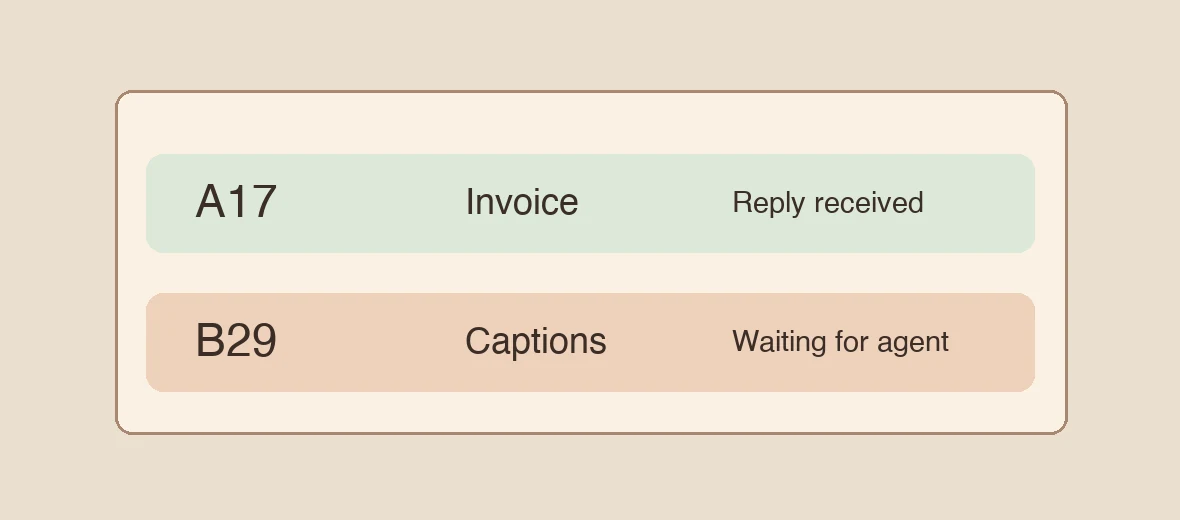
Put a test widget on a page only your team uses. Open two browser sessions. Send “A17, company invoice” in one and “B29, caption formats” in the other during the same minute. Join A17 and reply with something specific to invoices. Verify the reply reaches A17 while B29 is still waiting. Ask a second agent to find and join B29 from the matching notification.
Verify what happens after the handover
In the internal channel, ask the product team to check formats for B29. Let the assigned agent respond to the visitor. After closing the chat, send one more question from the visitor window and check where it goes and who receives it. Record what your setup does. The result can depend on the widget configuration and the visitor session.
If Teams never receives the request, first verify that the widget submits it. Then check Route chats to Team and confirm that the right team and channel are selected. If you cannot install the app, check whether the Teams tenant requires admin approval. Keep the test out of the live service queue.
Social Intents documents that the first agent to join becomes the primary responder and that the chat can be transferred. The widget can hide Join, Open Chat or Transfer. Check those settings in the test channel before treating a missing button as a routing error.
Visit official website
ProductTally may earn a commission if you buy through these links.
Social Intents · Visit official website
Official references
ProductTally may earn a commission if you buy through these links.