
E-commerce · 4 min read
Should you use Payhip variants for individual and team PDF licenses?
Use digital product variants to deliver the same PDF with separate license terms, and check both download paths.
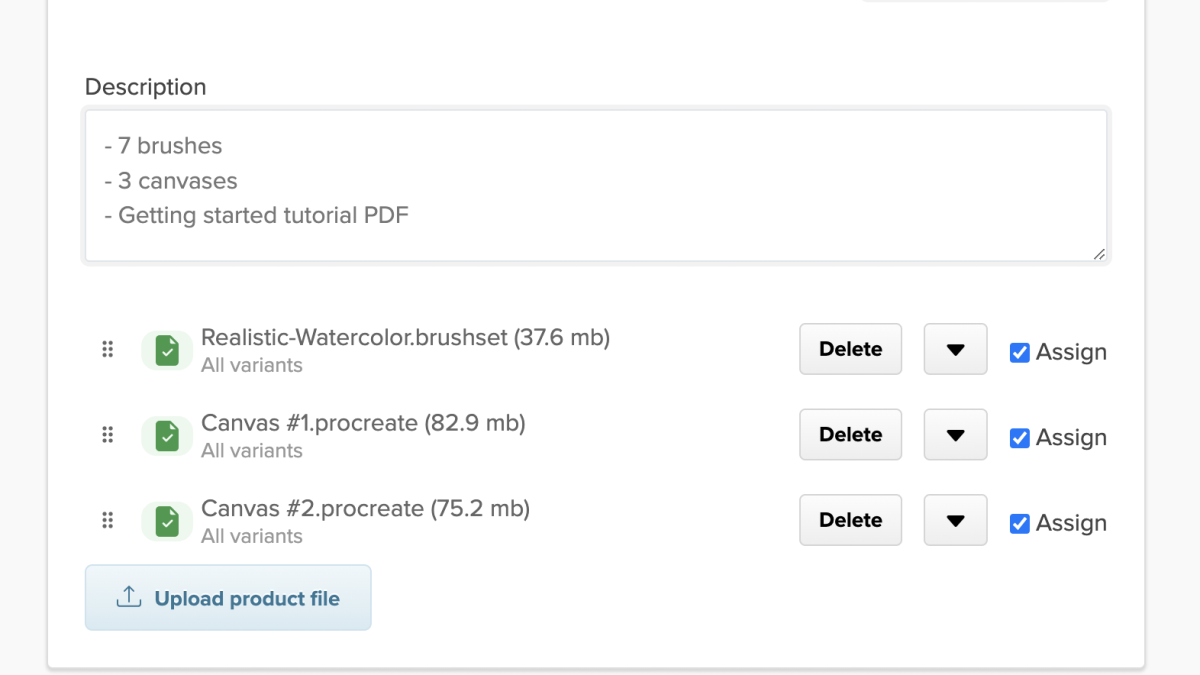
When the PDF is the same and only the permitted audience differs, use two digital-product variants and assign the relevant license files to each. Consider separate listings if the team edition also has training or a different purchase process. The variant determines which files the buyer receives. The license text describes the permitted use.
Show both license choices before checkout
| Example tier | What the buyer sees | Downloads |
|---|---|---|
| Individual | One buyer can use it in their own work | Workbook and individual terms |
| Team | Up to five members of one organization can use it | Workbook and team terms |
In the product editor, upload the workbook and both license files. Under Advanced option, enable variations. Select Assign next to the workbook for both versions and next to only the corresponding license file for each version.
Specify who counts toward the team limit, whether sharing inside the organization is allowed and which copies are permitted. In Payhip, upload the files, set the variant names and prices, and assign the right downloads. Payhip says variant descriptions are hidden in a dropdown layout. Put the main terms where the buyer can see them before paying.
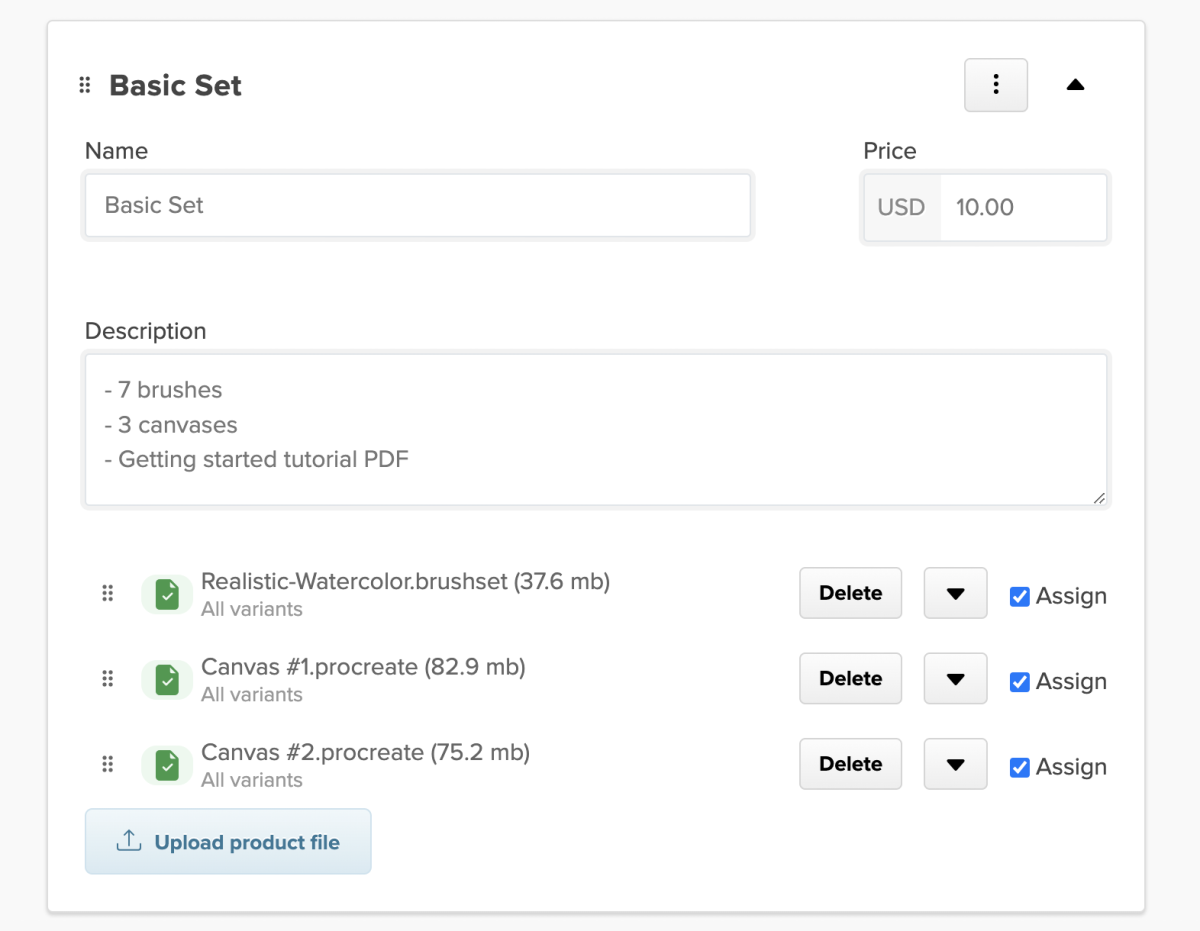
Test both purchase paths
Check that each tier receives its own license file. When retiring a tier, distinguish deleting the variant from deleting its file. Payhip says earlier buyers retain access to files originally assigned to a deleted variant, provided those files themselves remain. Version the prices, descriptions and files together so you can reconstruct an earlier purchase.
Visit official website
ProductTally may earn a commission if you buy through these links.
Payhip · Visit official website
Related guides
Official references
ProductTally may earn a commission if you buy through these links.