
E-commerce · 3 min read
How to add a Payhip cross-sell to a digital download
Pair a digital template with an optional worked example buyers can add before paying.
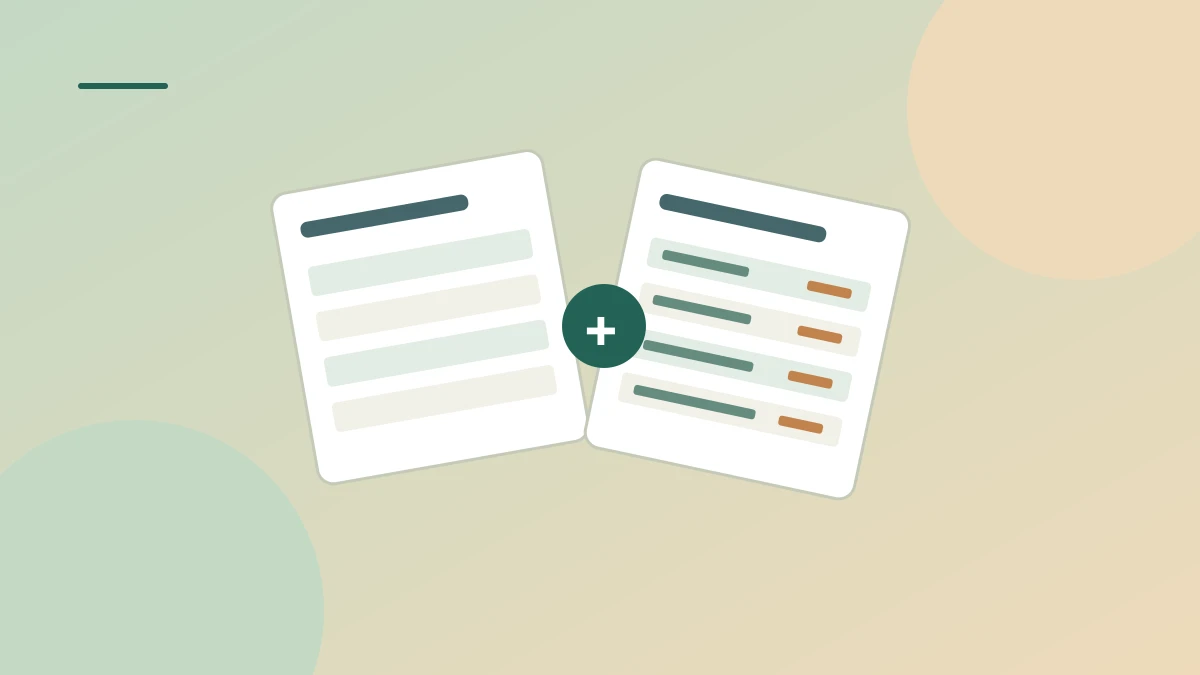
In Payhip, the digital download is the trigger and the companion item is the promoted product. The standard cross-sell appears at the bottom of the cart. Use an add-on that helps the buyer do the next job with the download they came for.
Give the buyer something they can use immediately
A freelancer shopping for a project budget spreadsheet needs a blank file they can reuse. Their next concern may be what to enter for a deposit or out-of-scope change. A filled-in example for a small website project offers an answer without forcing everyone to buy a course. Keep basic instructions in the main file so buyers can use either purchase as advertised.
Set the offer where the two products meet
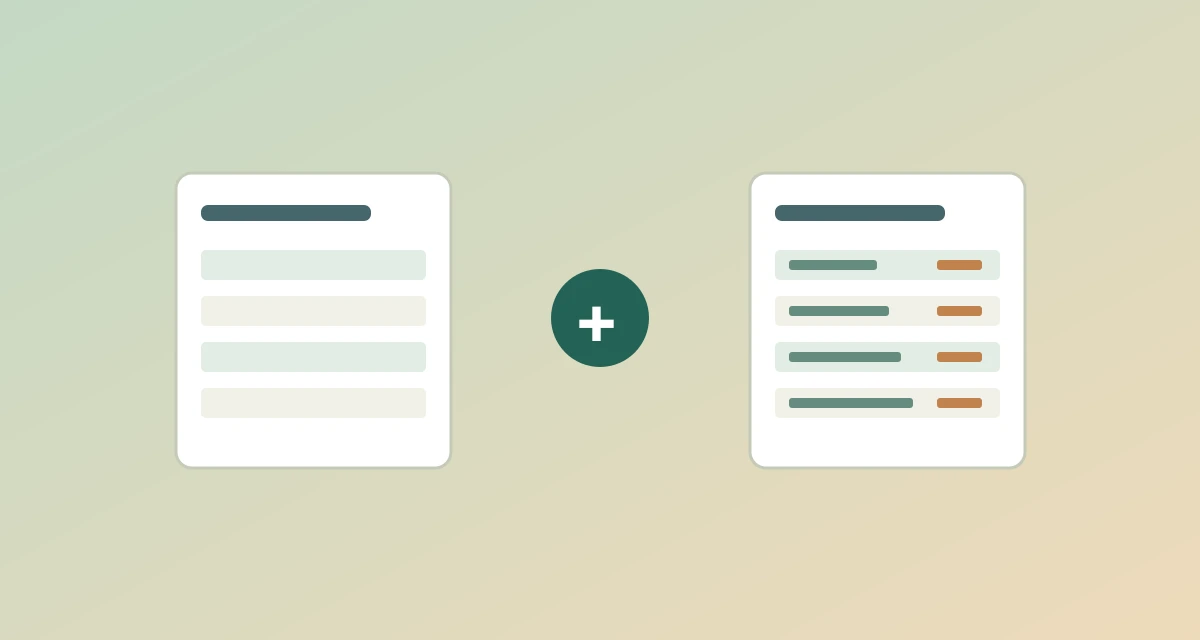
Open Marketing → Cross Selling and add a cross-sell. Choose the blank template as the trigger and the filled example as the promoted product, then set the proposed discount. The regular placement is at the bottom of the cart after adding the main product. Payhip also describes a prominent popup for eligible digital and physical products in the Add to Cart → Checkout flow.
If your product page mainly sends visitors through Buy Now on mobile, the documented popup flow does not apply. Use the standard Add to Cart path for the offer and label the example as optional. Keep the base product and companion names distinct enough that the cart tells the buyer what each charge buys.
ProductTally may earn a commission if you buy through these links.
Related guides
Official references
ProductTally may earn a commission if you buy through these links.