
Video · 4 min read
How to turn a vertical CapCut edit into a horizontal video
Duplicate the CapCut project and set the horizontal canvas. Keep the existing timeline, then locate the original media for shots that need more width. Changing the aspect ratio does not recover the sides of an already cropped export.

Keep the edit and inspect each shot
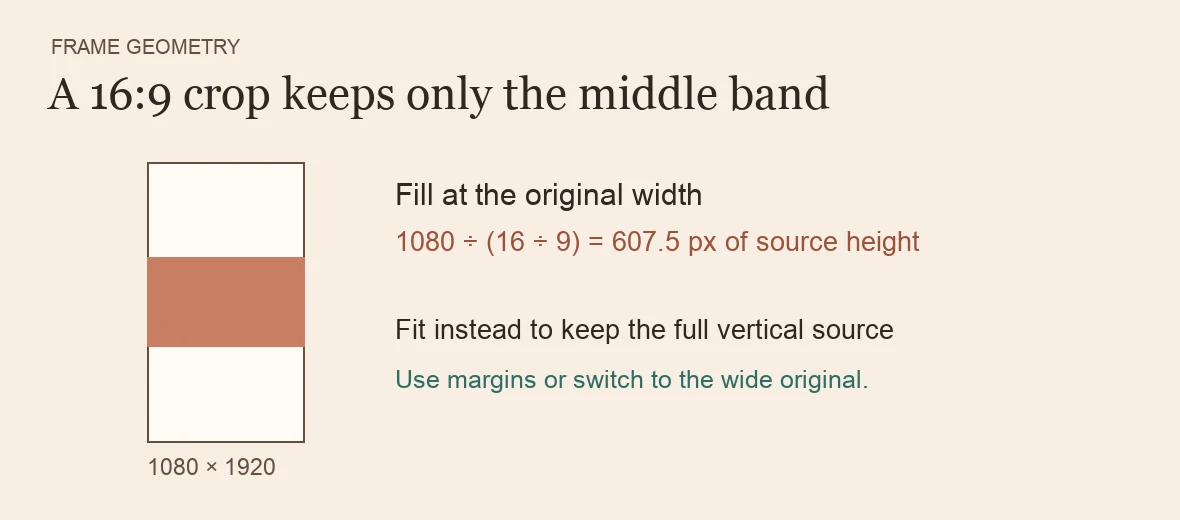
Save a copy of the edit, then set the canvas to 16:9. On a 1080 × 1920 source, filling 16:9 at the original width keeps 607.5 pixels of height, about 608. Note which clips can stay, which need original media and which need a different layout.
| Vertical shot | Horizontal fix |
|---|---|
| Two people reduced to one face | Return to the wide source. With only vertical sources, try paired panels or margins. |
| An interface confirmation is too tightly cropped | Use the real screen capture with more context, then enlarge the button if needed. |
| Burned-in captions at the bottom | Use clean footage and lay out new captions. Avoid duplicates if only the captioned export remains. |
Rebuild the captions after the picture is stable
Adjust framing first. If subtitles are baked into the only remaining export, decide whether they still fit before adding a second layer. Rebuild captions from clean footage if available. Check the opening, middle and ending in a desktop player.