Video Editor
One Windows PC. The license covers one year.
- Annual payment
- USD 54.95per year
 ProductTally

Desktop video editor
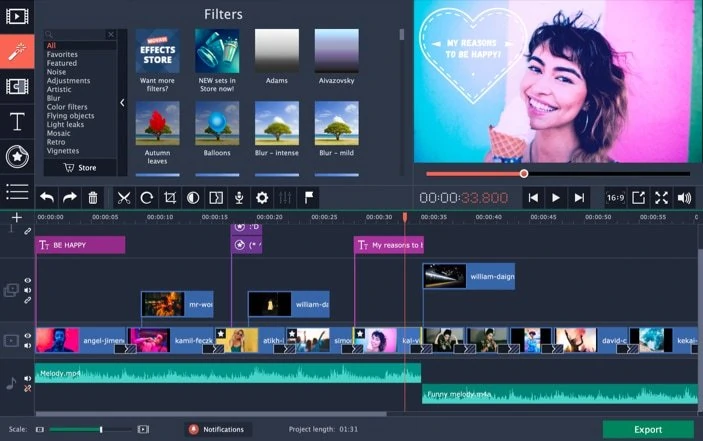
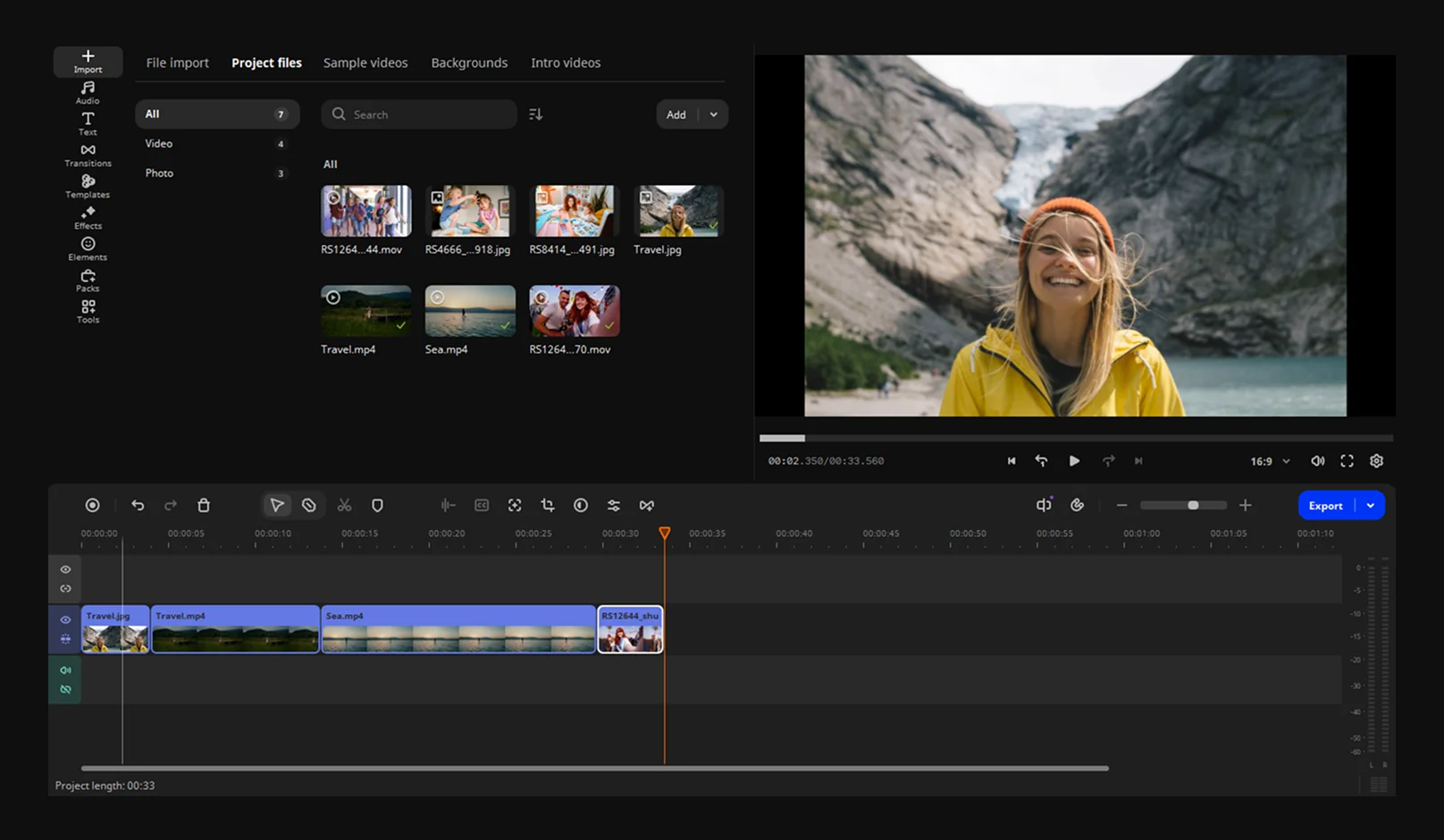
Movavi Video Editor helps you turn clips into a finished video on a desktop timeline. Trim footage, add titles and music, and export an MP4.
ProductTally may earn a commission if you buy through these links.
ProductTally may earn a commission if you buy through these links.
A practical option for a solo creator or small team editing a first YouTube video or product walkthrough. Try a short export to check the watermark and quality limits before buying.
The free edition exports with a watermark and limits output length, quality, and available codecs.
One Windows PC. The license covers one year.
One Windows PC. Pay once for a lifetime license.
US list prices in USD for the Windows edition. Prices vary by region. Confirm your total at checkout. · Nov 13, 2026
ProductTally may earn a commission if you buy through these links.
Movavi Video Editor · View official plans and pricingProductTally may earn a commission if you buy through these links.
Export a short MP4 and play it back to check the cut, title readability, and audio balance.
ProductTally may earn a commission if you buy through these links.
Movavi’s editing tutorial and free edition limitsProductTally may earn a commission if you buy through these links.
ProductTally may earn a commission if you buy through these links.
Movavi Video Editor runs on 64-bit Windows 10 and 11 and on macOS 12 or later. The purchase link here opens the Windows edition.
Movavi’s editing tutorial and free edition limitsExport a short MP4 and play it back to check the cut, title readability, and audio balance.
Movavi’s editing tutorial and free edition limitsThe free edition exports with a watermark and limits output length, quality, and available codecs.
Movavi’s editing tutorial and free edition limitsRead about Movavi Video Editor in the ProductTally blog.
Video · 4 min read
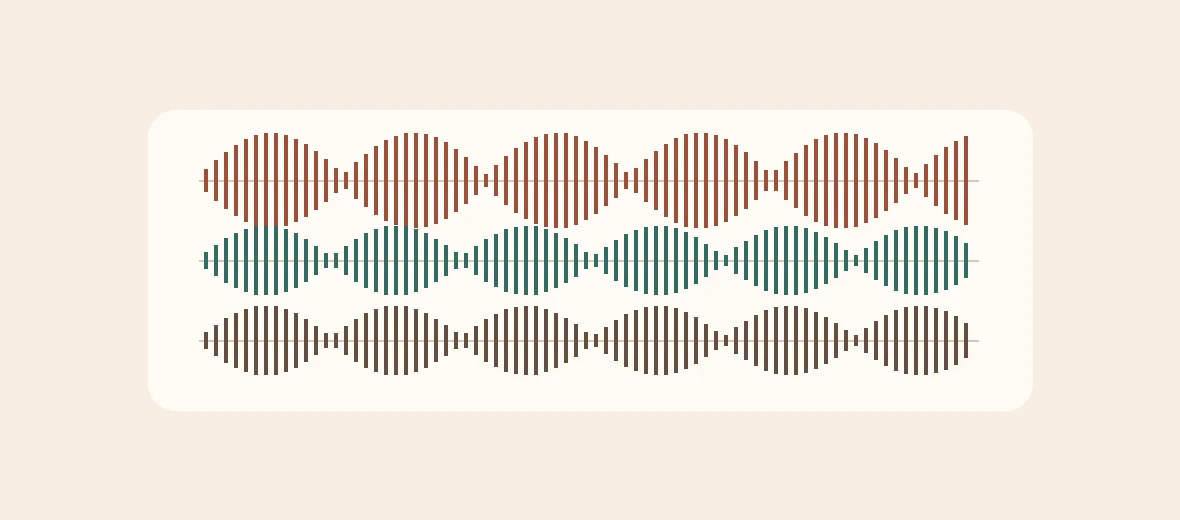
Compare the original, a light pass and a stronger pass for steady fan noise and isolated clicks.