
Design & visuals · 3 min read
Photoshop AI Assistant for product photos: one edit, then back to layers
Use a tightly scoped prompt for a product photo and keep control over what buyers need to see.
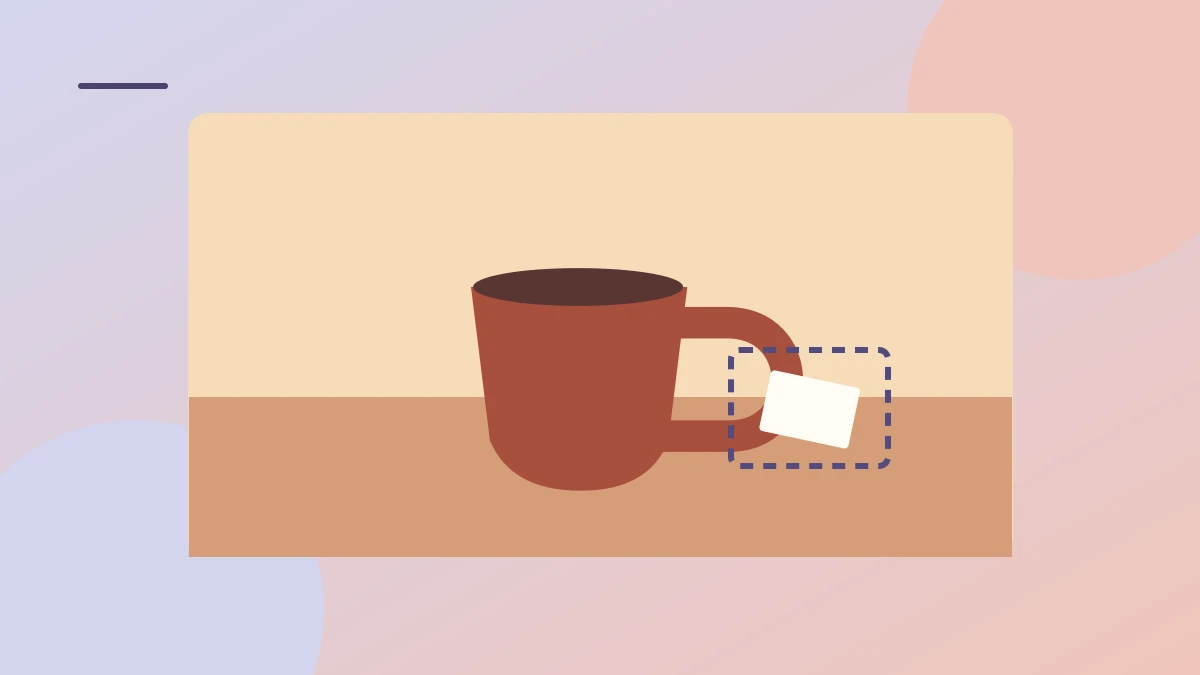
Adobe documents AI Assistant in Photoshop (beta) on desktop. Give it a specific edit for one region. For a separate workflow in Adobe’s AI Assisted Editor, the latest output becomes a new layer when you return to Pro Editor.
Keep the edit smaller than the photo
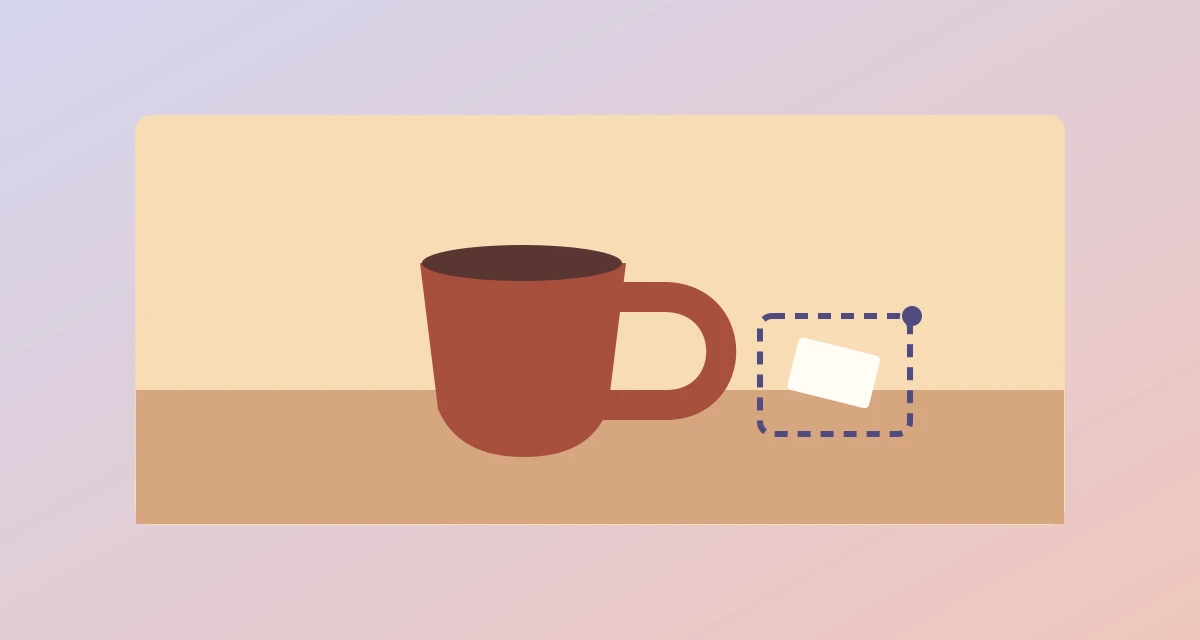
Imagine you photograph a brown ceramic cup. The glaze looks right, but there is a paper scrap behind it. Start by asking to remove that one scrap in the marked area. Keep the cup, handle, and shadow in view as you assess the result. A prompt that asks for a cleaner and brighter photo leaves far more interpretation to the model.
Adobe documents natural-language edits and specific-area refinement in the desktop beta. Work from a copy of the original and preserve anything a buyer relies on, especially color, silhouette, scale and markings.
Use layers to finish the image
If using the AI Assisted Editor workflow described separately by Adobe, switch back to Pro Editor to get the latest output on a new layer. Toggle visibility against the original. Check the cup’s edge and shadow at delivery size. Keep the source image intact and export a separate file for the shop.