
SaaS product news · 3 min read
Framer launches Automations. How do you send a Slack notice after publishing?
On November 24, 2026, Framer launched Automations, Connectors and the Slack Agent. Small teams can use the Deploy Notification preset to send the site URL and the publisher’s name to Slack after a publish. Choose the channel, give the automation read-only access to the project and test one run.
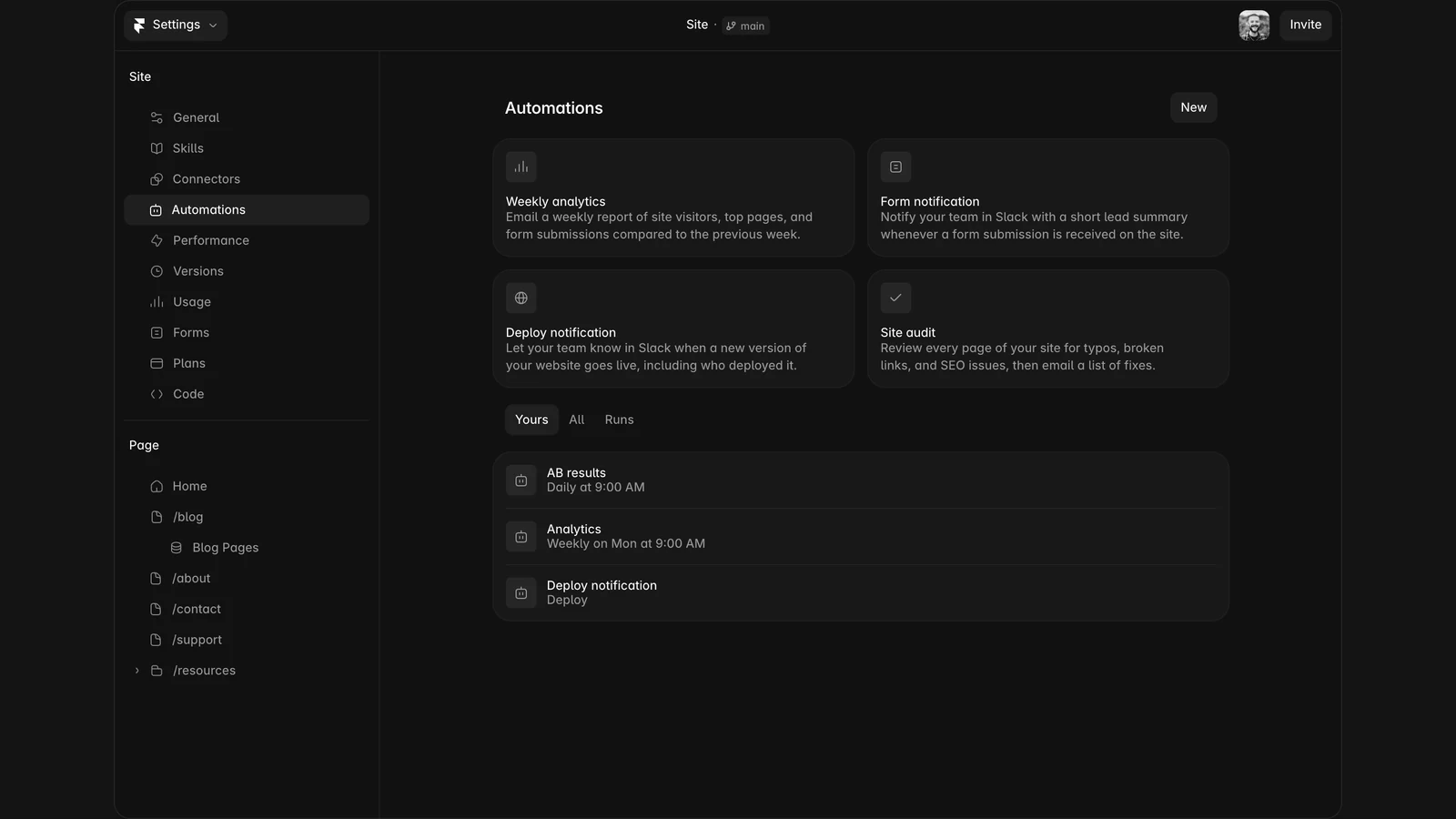
Send a Slack notice when the site is published
In Site Settings, open Automations and choose Deploy Notification. Use the Publish trigger and insert the site URL and publisher fields into the instructions. Connect Slack and choose the channel your team uses for releases. For a campaign page, keep the message to the URL and the person who published it so a teammate can open it and review the release.
Set the project permissions and review the first run
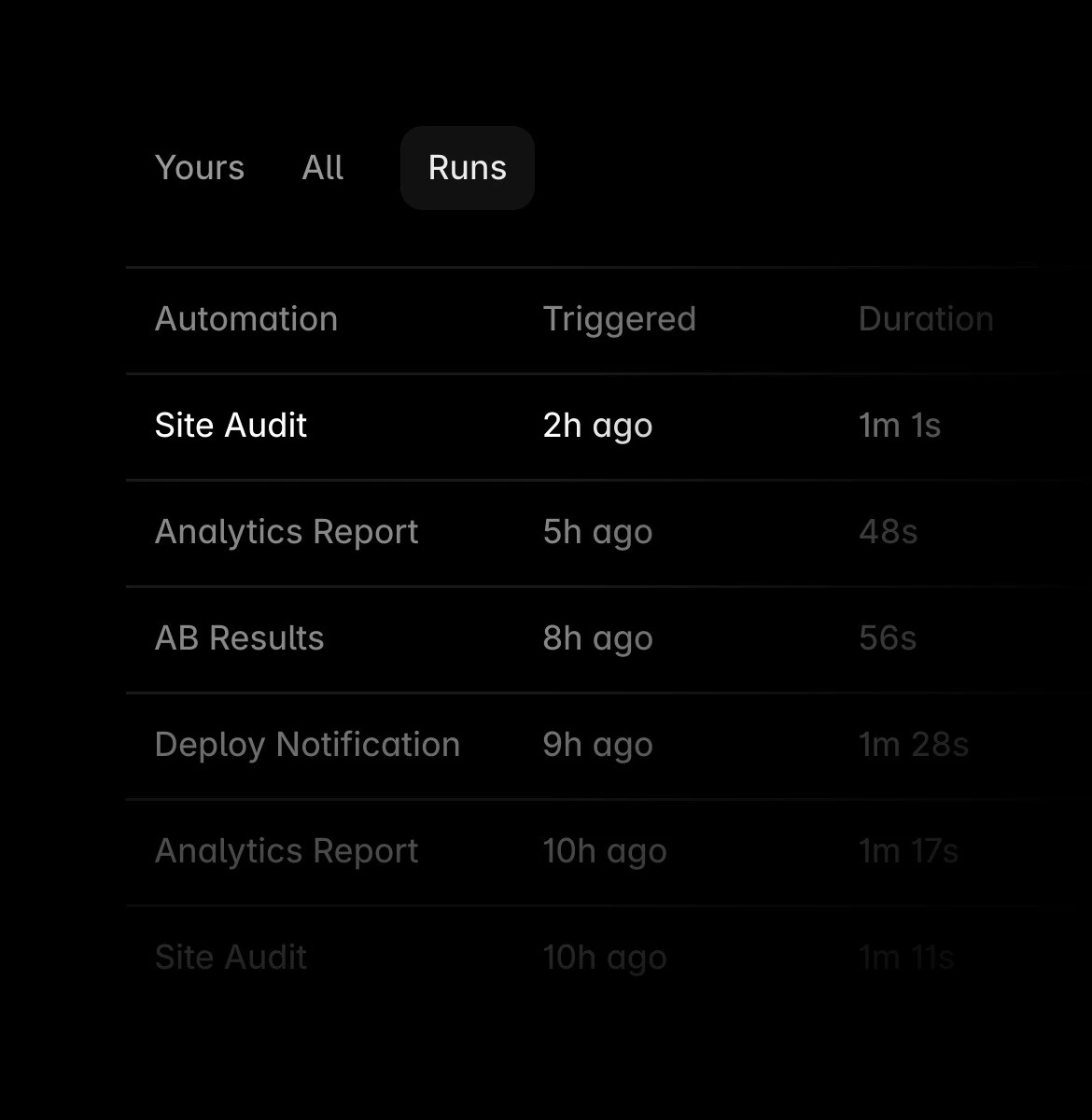
Turn Edit, Publish and Code off under Capabilities for a report-only workflow. Run it manually and check the destination and message in Slack. Review the Runs entry after your next actual publish. Each run uses workspace AI credits. Framer’s pricing page lists one automation on Free, three on Basic and ten on Pro.
Use @Framer when someone needs to ask a question
Let the automation or Slack connector deliver routine notifications. Use the separate Framer Slack Agent when a teammate wants to ask about recent page performance or request a CMS image change on a branch. Open the branch preview to inspect a change before your team merges and publishes it.